Keep individual sessions in Workouts, then switch to Week Templates to arrange them into a training week. The library lets you browse each workout's structure, filter the list and open a session for editing. In the week editor, saved workouts sit beside the days you can drag them onto.
The screenshots use synthetic training data in the web app. Workout Library is included in Free and Pro.
Browse your saved workouts
Open Workout Library from your avatar menu. The switch beside the title has two views: Workouts for individual sessions and Week Templates for saved weekly schedules. Create workout opens the sport selector and takes you into Workout Planner.
On a wide screen, filters occupy the narrow column on the left and workout cards appear in two columns on the right. Each card shows the workout name and purpose above its block profile. The sport and target type sit beside the name; duration and planned load appear below the graph.
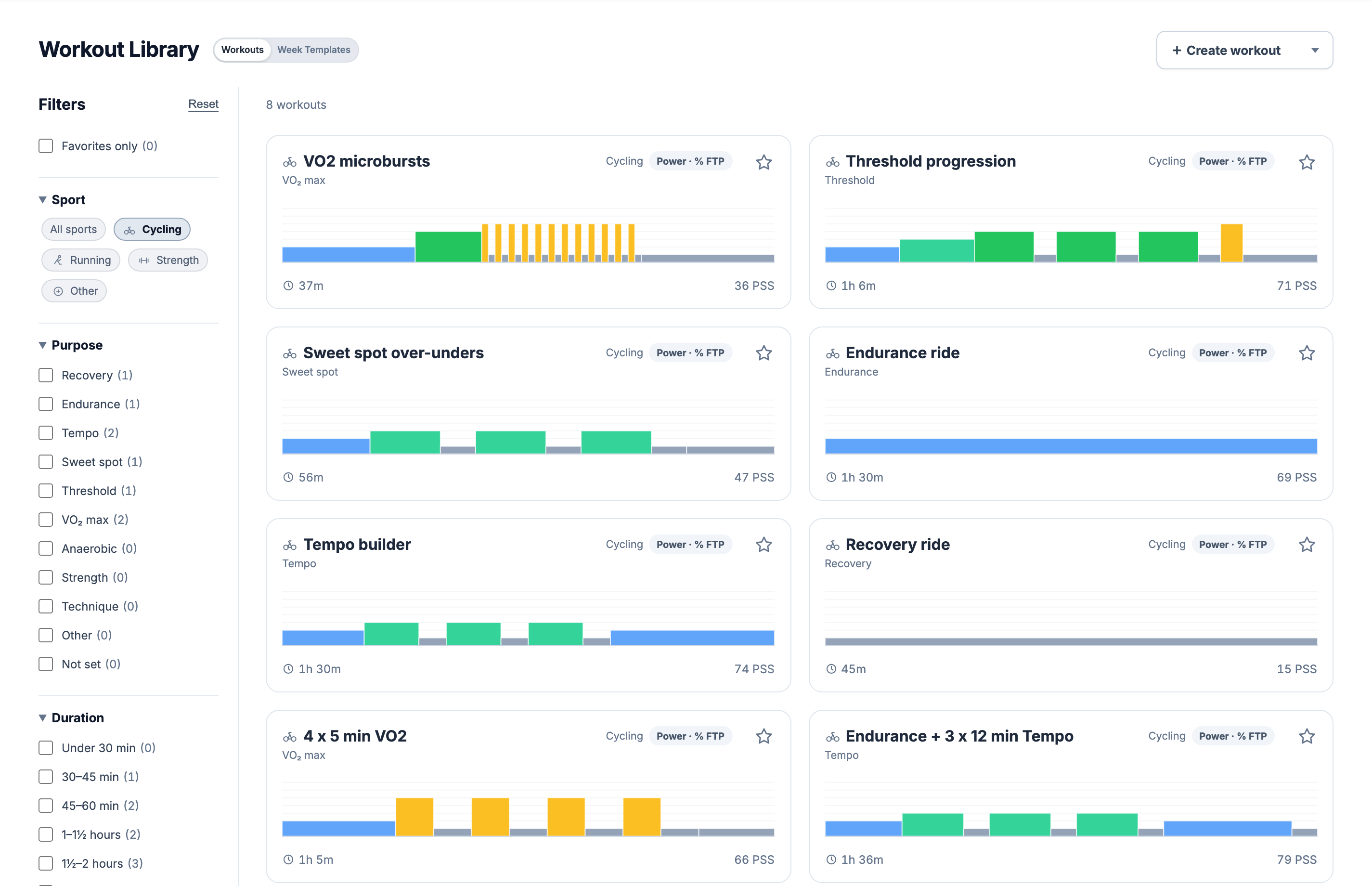
The small graph shows the order and relative duration of the steps, including every repetition of a set. Hover over a block to read its name, target and duration. Click the card to see the full workout, or click its star to add it to favorites without leaving the list.
On a phone, cards stack in one column and the filter controls open under Filters. The view switch stays above the list. A new account has an empty library with a Create workout action for each sport; the pictured sessions are demo data.
Narrow the list with filters
The library opens with Cycling selected. Choose All sports to include running, strength and other workouts, or select one sport. Purpose groups sessions such as Endurance, Tempo, Sweet spot, Threshold and VO₂ max. Duration runs from under 30 minutes to two hours or more. The remaining controls show favorites and workouts carrying your selected tags.
Selections update the cards immediately. Choose two purposes to include either one, then add a duration filter to restrict both to that time range. Selecting several tags includes workouts with at least one of those tags. The counts beside Purpose and Duration show how many workouts match each option with the other filter groups applied.
Favorites only uses the stars on the cards. Reset clears the selection; when there are no matching cards, Reset filters is available in the empty result. Filters stay in the URL when you reload or return from an opened workout. On a phone, expand Filters to change the same selections.
Purpose can be changed in the workout builder. It follows the saved structure automatically until you choose it manually; Not set includes older workouts with no classification. A duration exactly on a boundary belongs to the next band, so a 45-minute session appears in the 45-to-60-minute group.
Open a workout to edit or reuse it
Clicking a card opens the workout page. The full profile sits below the summary of sport, duration, target and planned load. The actions beside the title work on this saved session:
- Edit opens its structure in Workout Planner. Use the graph and step controls to change the workout, then save it back to the library.
- Duplicate opens an unsaved copy with the original steps and tags. Give it a name and save when you want to keep both versions. Cancel leaves no new workout behind.
- Edit tags opens the tag selector. Choose existing tags or create one, then press Save tags. The selected tags appear on the workout and become available in the library filters.
- Schedule opens the date dialog. Export opens the formats supported by this workout.
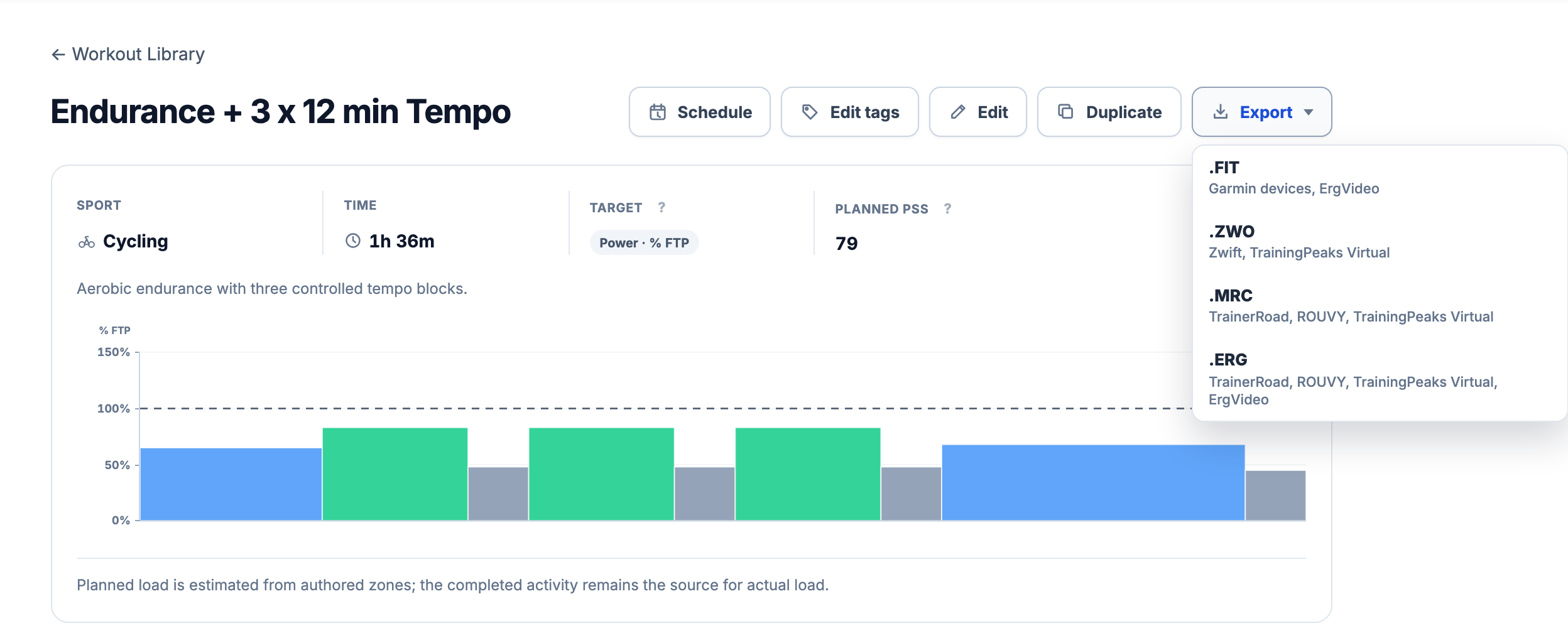
Workouts with no intensity targets can be opened and scheduled, but the intensity builder cannot edit or duplicate them. Export support also depends on sport and target type; delivery and export covers those limits.
The card’s load is an estimate from the saved prescription. Load estimate unavailable means the workout has no estimate to display. The planned load calculation explains the inputs; a completed activity can have a different load.
Arrange workouts beside the days of the week
Switch to Week Templates and choose Add week template. In the desktop editor, the workout list and the seven-day schedule sit side by side, with filters on the far left. Each area scrolls independently, so you can find a workout without moving the week out of position. The week name and totals sit above them.
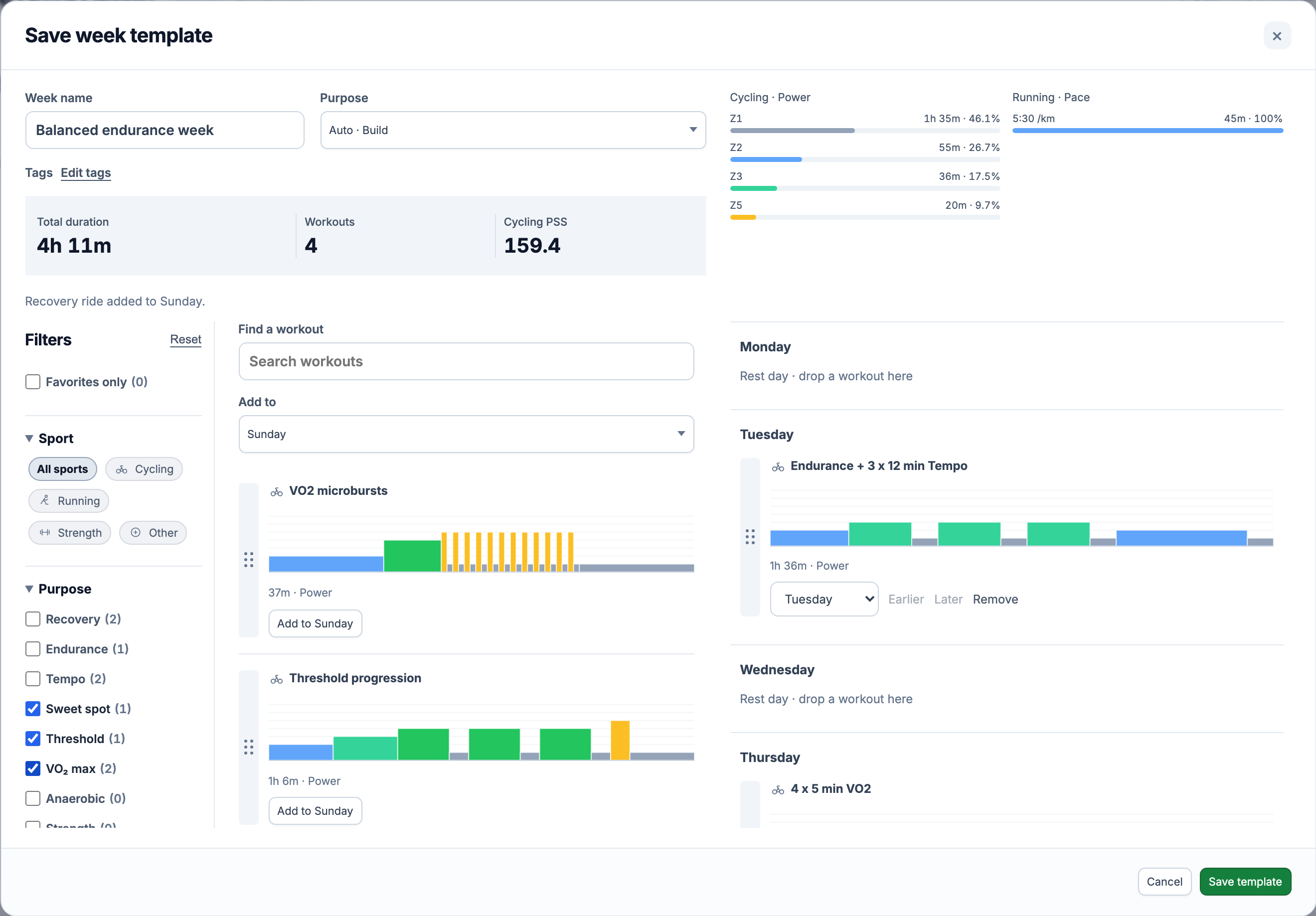
Use Find a workout to search by name, or narrow the list with the same library filters. Drag a workout by its dotted handle onto a day. Dropping it on Tuesday adds a copy to Tuesday and keeps the original in the library. The destination day is marked as you move over it.
You can also click the destination day, or choose it in Add to, then press the workout’s Add to Tuesday button. The button label follows the selected day. This lets you fill several days without dragging; on a phone, switch between the Workouts and Week tabs and use these controls.
To move a placed workout, drag it to another day or use the day selector below its profile. A day can hold more than one session. Earlier and Later change their order within that day; Remove takes a placement out of this week while keeping the library workout. Empty days remain rest days.
As you add sessions, the summary updates the workout count and total duration. Cycling PSS covers the saved cycling power estimates, and the intensity bars are grouped by sport and target type. You can keep a ride and a run in the same week without combining their target scales.
Give the week a name and press Save template. It stores the weekday positions and a snapshot of each workout, ready to reuse. A template needs at least one workout and supports up to 100 placements. Back in Week Templates, Add to Calendar opens the date preview; choose the target week and review the additions before confirming.
Add a single workout from Calendar
For one session, open a day in Training Calendar and choose Workout. The chooser has sport tabs and a name search above the saved workouts. Select a card, check its profile and duration, then press Add to Calendar. Cancel closes the chooser without adding it.
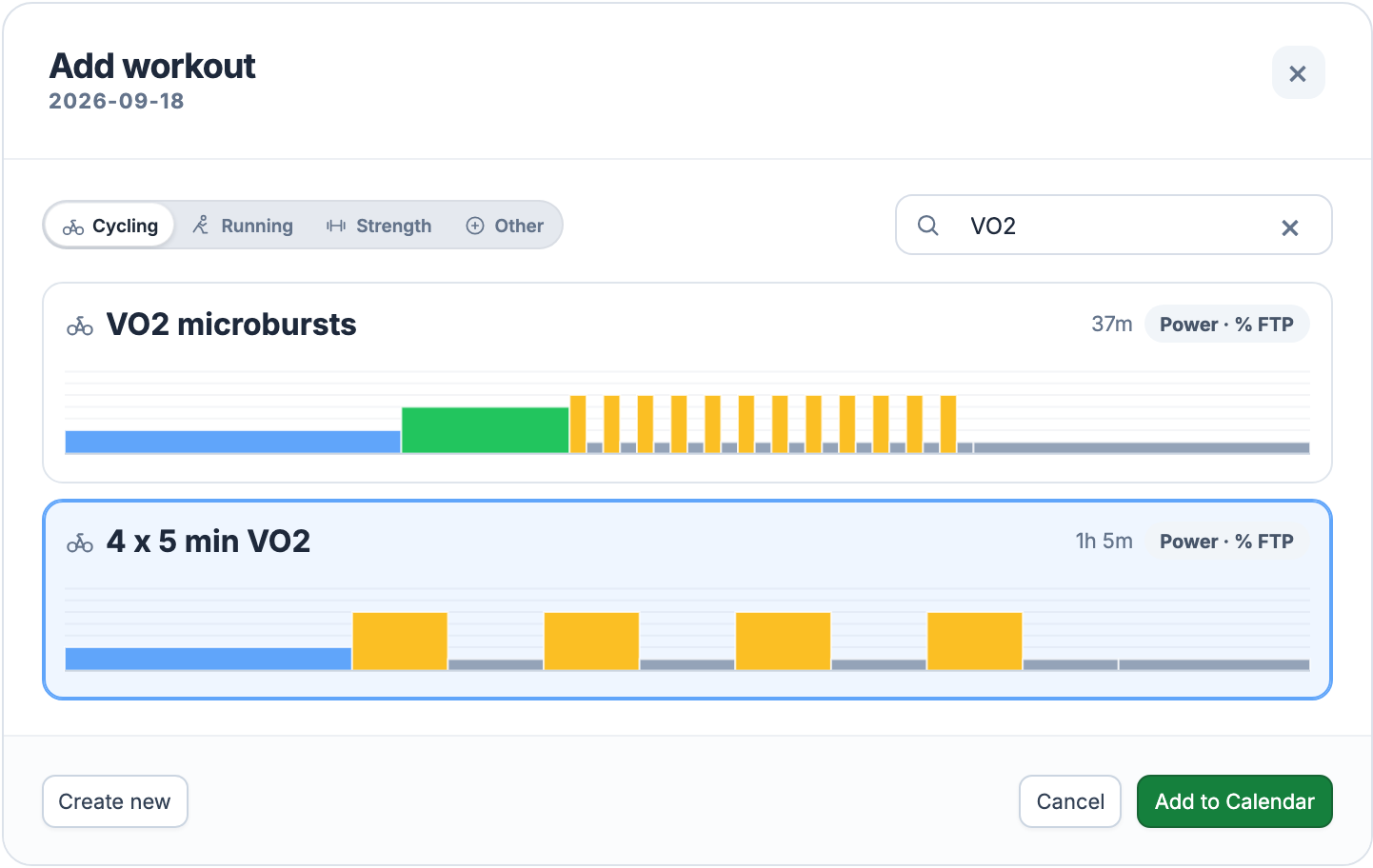
We save a snapshot of the selected workout for that date. Editing the library does not rewrite existing plans: changing a tempo effort from 12 to 15 minutes leaves earlier calendar placements at 12 minutes. If the session conflicts with Availability restrictions, review the warning before adding it; the workout is not shortened automatically.
Completed recordings remain in Activity Library. Planned vs Completed compares a dated plan with its recording. Sending a workout to Garmin Connect or Wahoo needs a connected account and the provider’s permissions; placing it on Calendar does not send it to a device.
All Pro features are free through January 31, 2027. No credit card or automatic charges. After Early Access, keep using Free or choose Pro. See Free and Pro plans.