You can measure a ride in miles and pace a run in minutes per kilometer. You can give a summer of training a name and return to it in a comparison. Account and Training Preferences brings these choices together, alongside the personal measurements that give your training numbers context.
Use the units you train with
In the web app, open the user menu → Account settings → Units. Start with the Metric preset or Imperial, then adjust individual fields. Distance also controls speed; running pace and pool length have their own selectors. You can also choose units for elevation, body weight, height, temperature and energy.
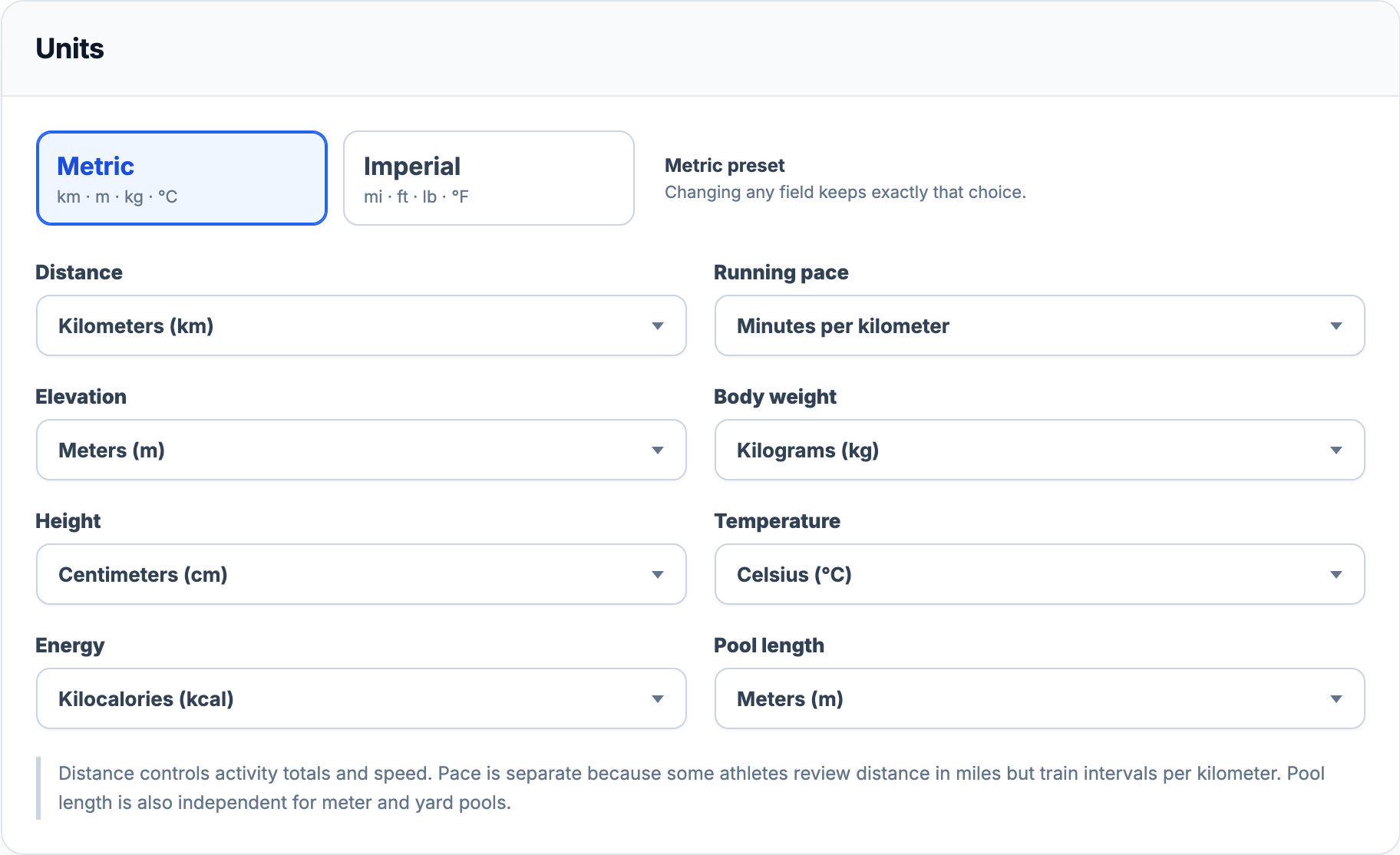
Use Save changes to apply profile, unit and regional edits to your account. Reset returns unsaved fields to their last saved values. Changing kilometers to miles changes how a distance is displayed; it does not rewrite the sensor recording or create another measurement.
Give dates the right local meaning
Regional settings cover date order, 12- or 24-hour time, the first day of the week and the decimal separator. The preview shows how a sample activity will look before you save. The account language can be English, Russian, Spanish or Polish; it is used for the interface and new AI responses.
Time zone determines the local day of an activity’s start. A session near midnight can belong to a different day after a timezone change, and daily training load is recalculated. Check the calendar and Training Load after the change. Use device copies your device’s current timezone into the field; Save changes applies it.
Keep the athlete behind the numbers up to date
Profile holds your display name and photo. Email is shown as your login identity and cannot be changed on this page. Year of birth and biological sex supply inputs for applicable heart-rate estimates and load calculations. These fields have a different purpose from choosing how a number is displayed.
Weight keeps a dated history used by supported power-per-kilogram metrics. Enter a reliable measurement; leave it blank when none is available. Switching kg to lb is a display preference, while entering a different weight changes an input to analysis. Heart-rate and power zones have their own sections and history, explained in Training Zones and Thresholds.
Save a period you want to return to
In Seasons, give a period a name, a start date and an end date. Both dates are included. For example, Summer base can mean June 1 through August 31, ready to select again in Progress. Editing the dates changes the comparison range. Deleting a season removes that saved range and keeps the activities. A season does not schedule workouts.
Keep labels useful across your history
Tags lets you create a name and color, see how many active activities use each label, and rename it everywhere it is used. Assign labels from the activity list or detail editor, then use them to find records in Activity Library. Deleting a tag removes the label, not the activities or their measurements. Workout-library tags belong to the separate reusable-workout workflow.
Seasons and tags use their own add, edit and delete actions. They do not wait for the page’s Save changes button. Check the result beside the action; if an error appears, the section explains what could not be saved.
Follow a message to the action it needs
Notifications can point you to a newly analyzed activity, a processing problem or a setting that needs attention. For a provider connection or sync error, open Integrations and inspect the affected service; Device Sync explains connection and delivery states. Account preferences described here are available on Free and Pro in the web app.
All Pro features are free through January 31, 2027. No credit card or automatic charges. After Early Access, keep using Free or choose Pro. See Free and Pro plans.