Turn a session idea into a workout you can follow: choose a target, shape the efforts and recoveries, then save it for your next training day. Workout Planner is useful when you want control over the details and a clear picture of the whole session before you start.
The examples use synthetic training data in the web app. Workout Planner and the Workout Library are included in Free and Pro.
Start with the session you want to do
Suppose you want a steady ride with three 12-minute tempo efforts, five minutes of recovery between them, and some easier riding around the set. You can build that session once, keep it in your library and adapt it for another day.
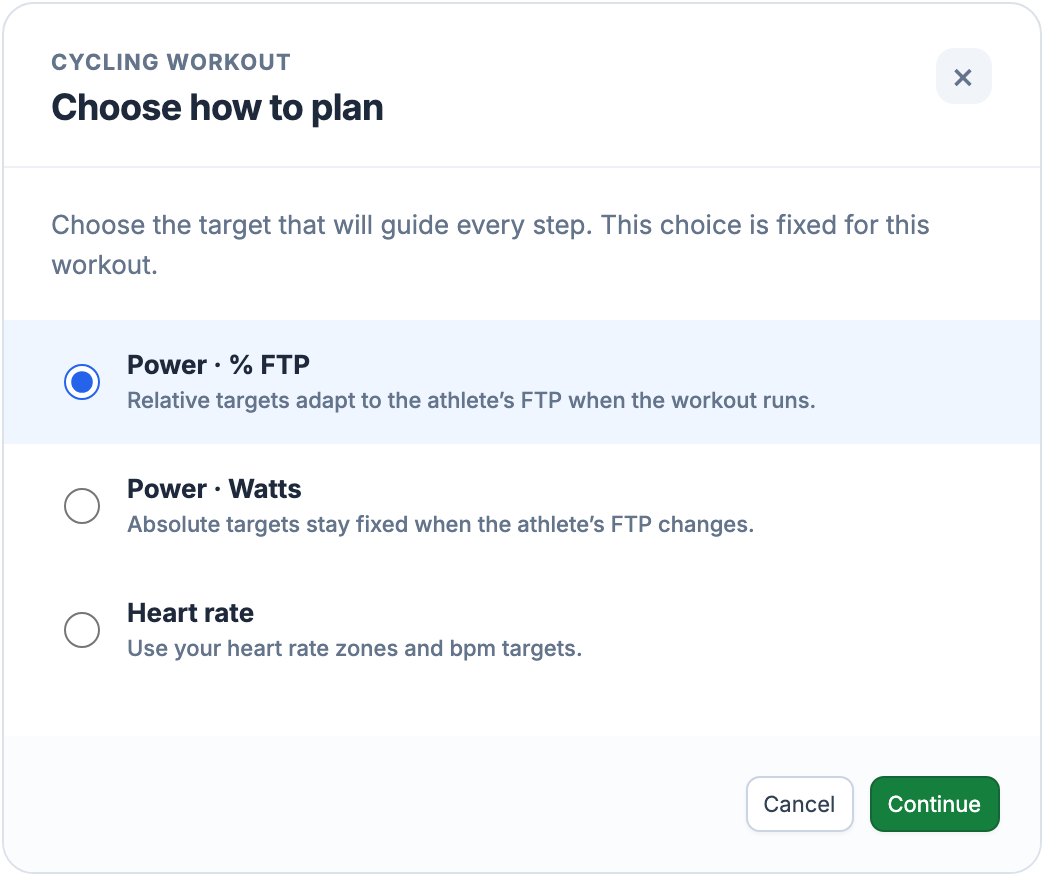
Open the Workout Library from Training Calendar, choose Create workout, then select the sport and the target that will guide the session. For this example, choose Cycling → Power · % FTP. Every step will use power; a single workout does not mix power, heart rate and pace targets.
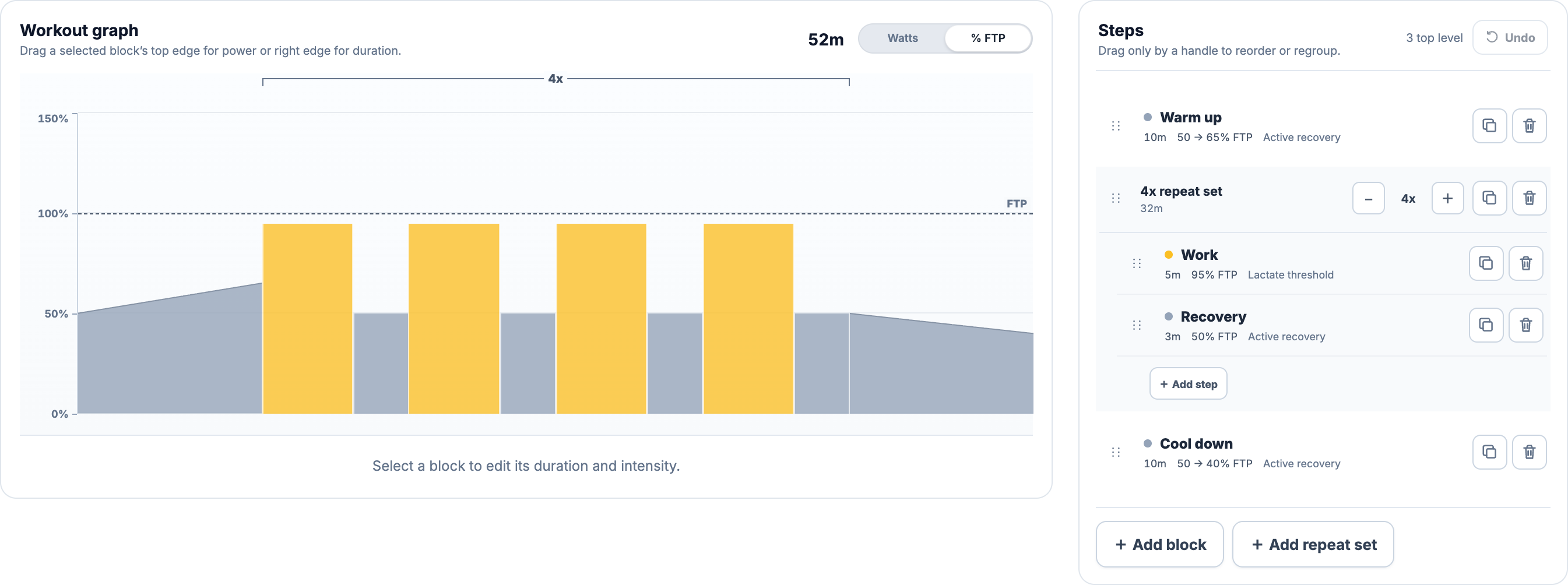
The power editor opens with a starting structure: a warm-up, a repeated work-and-recovery pair and a cool-down. This draft is 52 minutes. The warm-up gradually rises 50→65% FTP; the cool-down starts at the final recovery’s power and falls 50→40% FTP. In Watts mode, the starting ramps are 100→150 W and 100→80 W. Every value is editable.
Let power rise or fall through a block
Select a power block and turn on Gradient. The intensity controls become Intensity Start and Intensity End, side by side. Set the power at the beginning and end of the step; the target changes smoothly between them over its full duration. This works in both % FTP and Watts.
Drag either of the two white corner points up or down to change that end independently. They replace the central intensity handle while Gradient is on. The right-hand duration handle still changes the step’s length, and the numeric fields let you enter exact targets. You can also focus a corner point and use the up/down arrow keys.
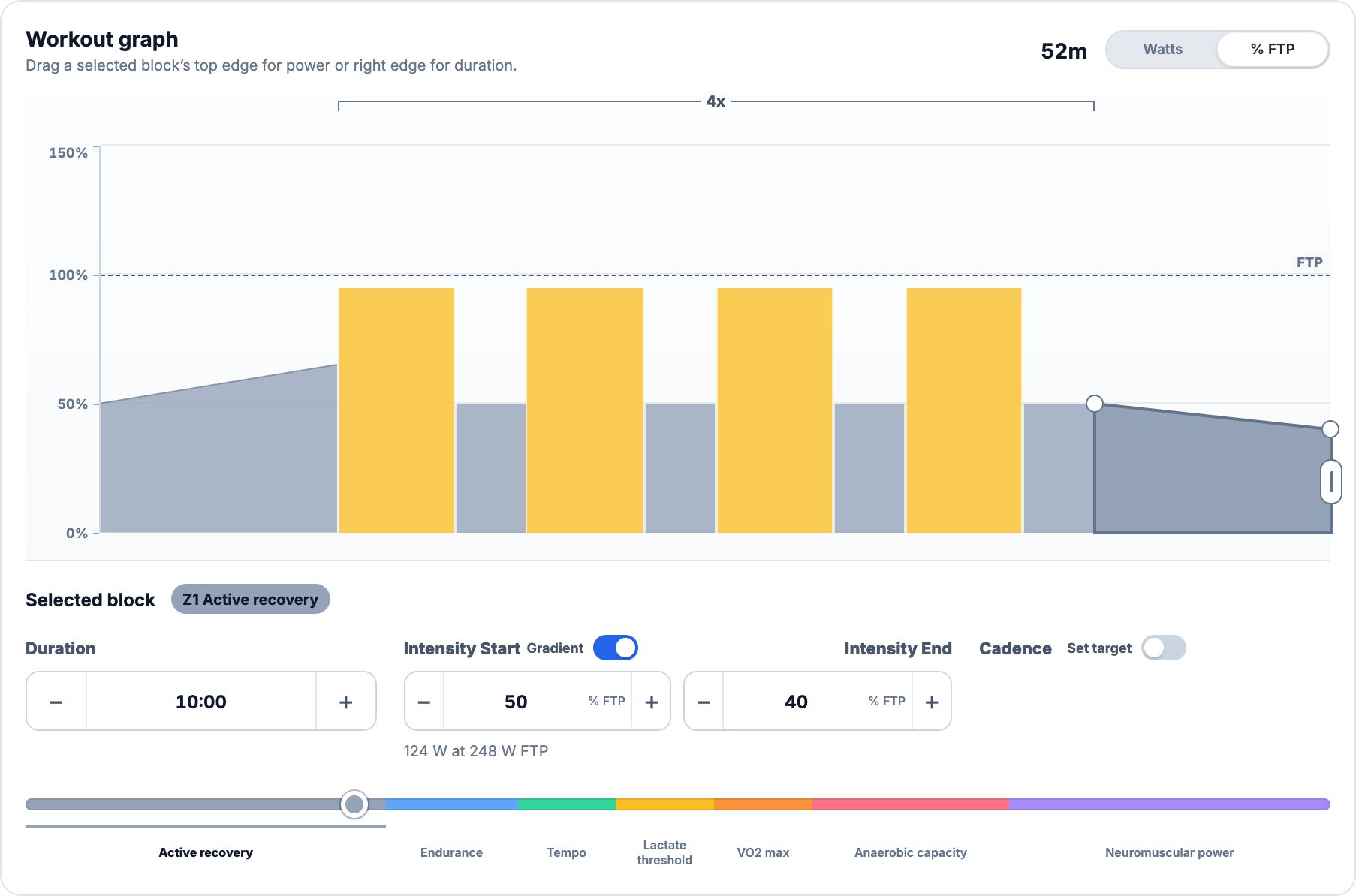
Turning Gradient on initially gives both ends the current target, ready for you to set the slope. Turning it off keeps Intensity Start as a steady target. Undo restores the previous shape, and the saved workout keeps both endpoints. Planned intensity, energy and time in power zones follow the changing target.
Give the workout a useful name, then change the blocks to match the ride. For the steady-target example below, turn Gradient off on the warm-up and cool-down and enter the listed values. Use Add block for a separate effort and the list handle to put it where it belongs. Here, an endurance block goes between the repeat set and the cool-down.
| Part of the ride | Duration | Power target |
|---|---|---|
| Warm-up | 15 minutes | 65% FTP |
| Tempo + recovery, repeated three times | 12 minutes + 5 minutes per round | 83% FTP + 48% FTP |
| Endurance | 25 minutes | 68% FTP |
| Cool-down | 5 minutes | 45% FTP |
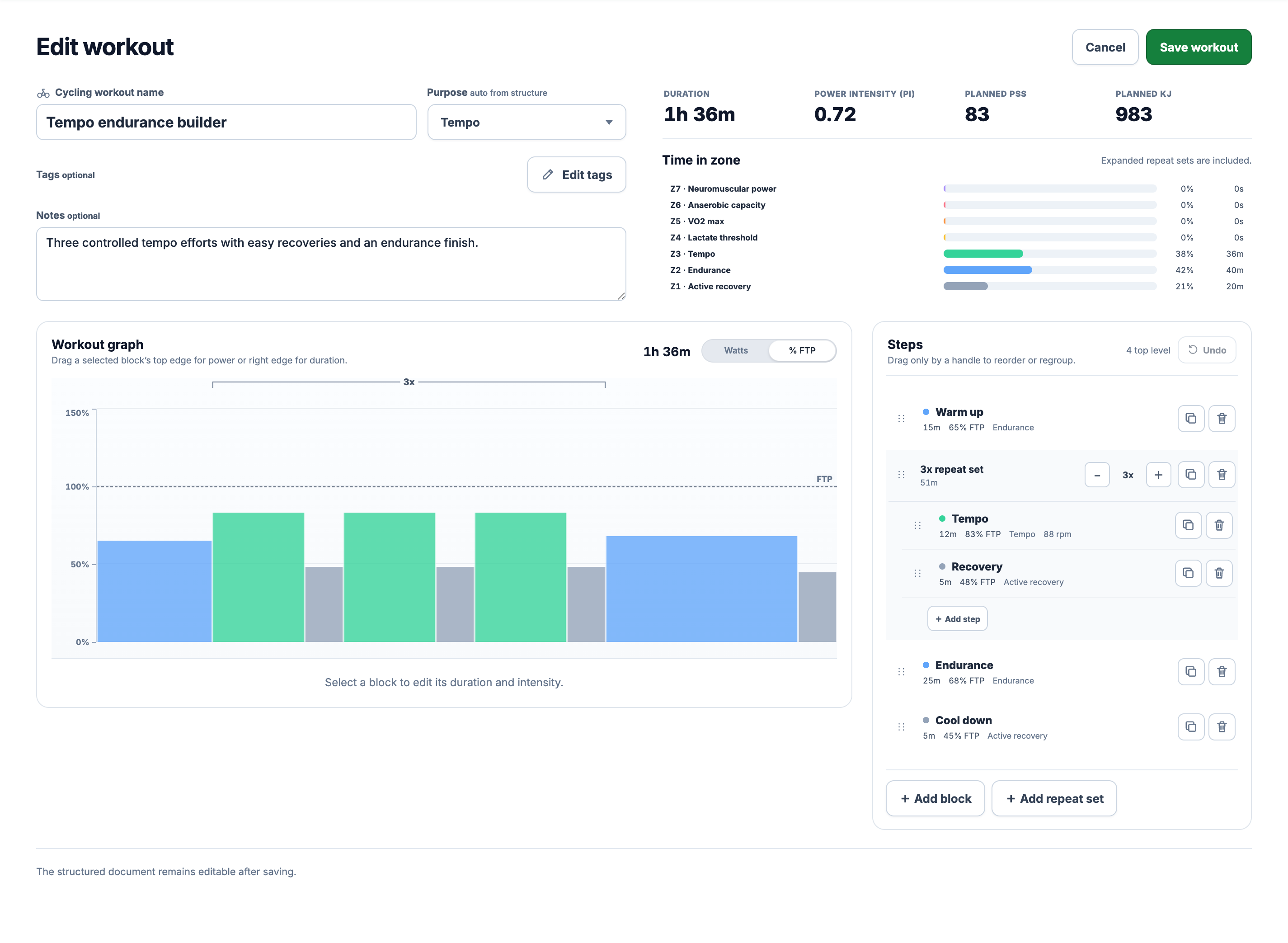
That makes 1 hour 36 minutes: 15 + 51 + 25 + 5. The recovery belongs to the repeated pair, so there is a five-minute recovery after the third tempo effort too. The example also gives the tempo steps a cadence target of 88 rpm.
Change the length, effort or position
Select a block in the graph or Steps list to open its controls. For the tempo step, the duration is 12:00 and intensity is 83% FTP. With this demo athlete’s 248 W FTP, the editor also shows 206 W. You can type an exact duration or target, use the plus and minus controls, and set an optional cadence target where available.
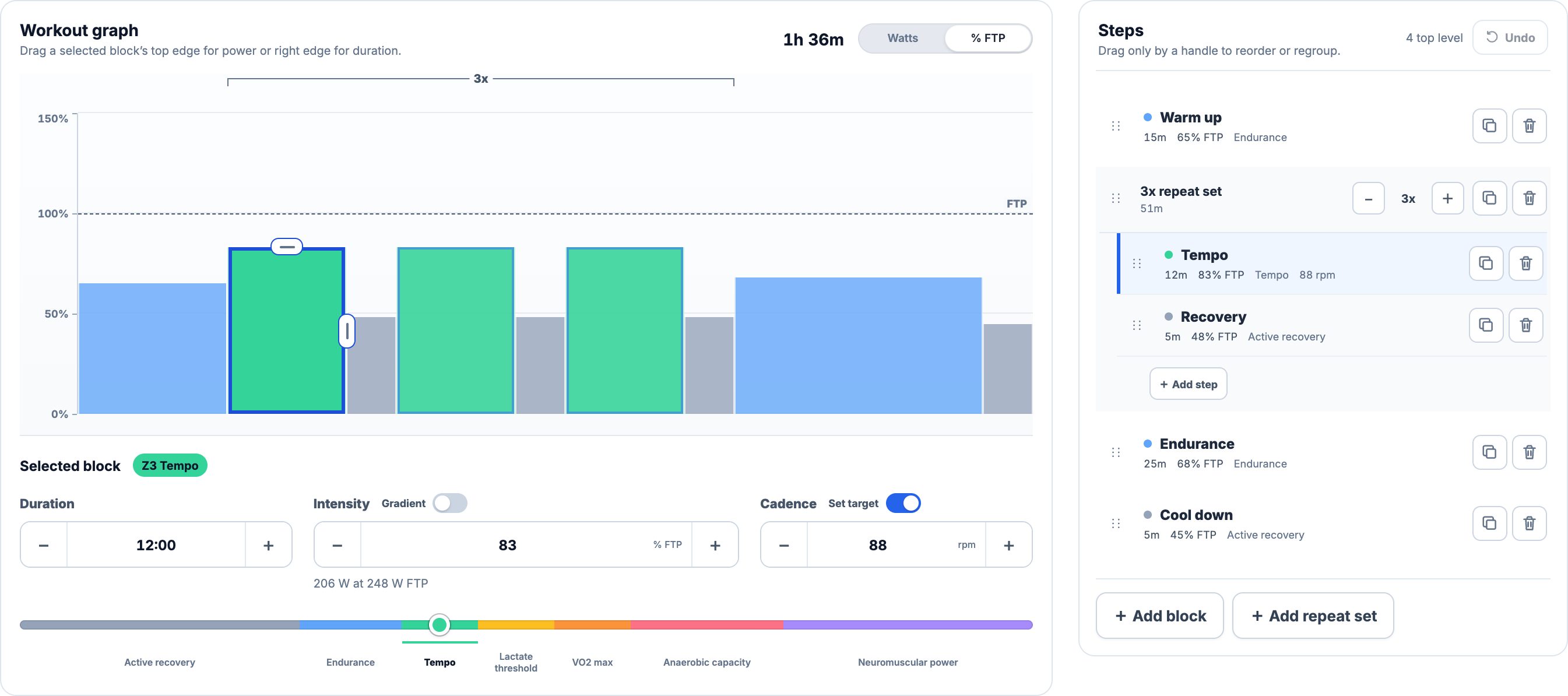
The three pointer actions have different jobs:
| What you want to change | What to move | What happens |
|---|---|---|
| How long the step lasts | Drag its right-hand duration handle sideways | The block gets wider or narrower on the time axis |
| How hard the step is | Drag its top intensity handle up or down | The target and block height change |
| When the step happens | Drag its handle in the Steps list | The step moves in the workout or into/out of a repeat set |
Graphical power and heart-rate duration edits use five-second increments. Dragging a block’s edge does not reorder it. Use the list handle for that, or the duplicate control to make a separate copy. Double-click a step’s name, or press F2 while it is selected, to rename it.
Undo and Redo restore changes to the structure and its selection. Their keyboard shortcuts work outside text-entry fields, so you can experiment without losing the earlier version of the draft. Notes can hold practical instructions, tags help you find the session later, and Purpose follows the structure automatically until you choose it yourself.
Change a whole set in one place
Use Add repeat set, add work and recovery steps inside it, then choose the repeat count. You edit the pair once; the graph expands it into the order you will perform. Changing the tempo step from 12 to 13 minutes adds one minute to each of its three appearances, so the session becomes three minutes longer.
Increasing our set from three to four rounds adds another 12-minute effort and five-minute recovery. The set grows from 51 minutes to 1 hour 8 minutes, and the whole ride from 1 hour 36 minutes to 1 hour 53 minutes.
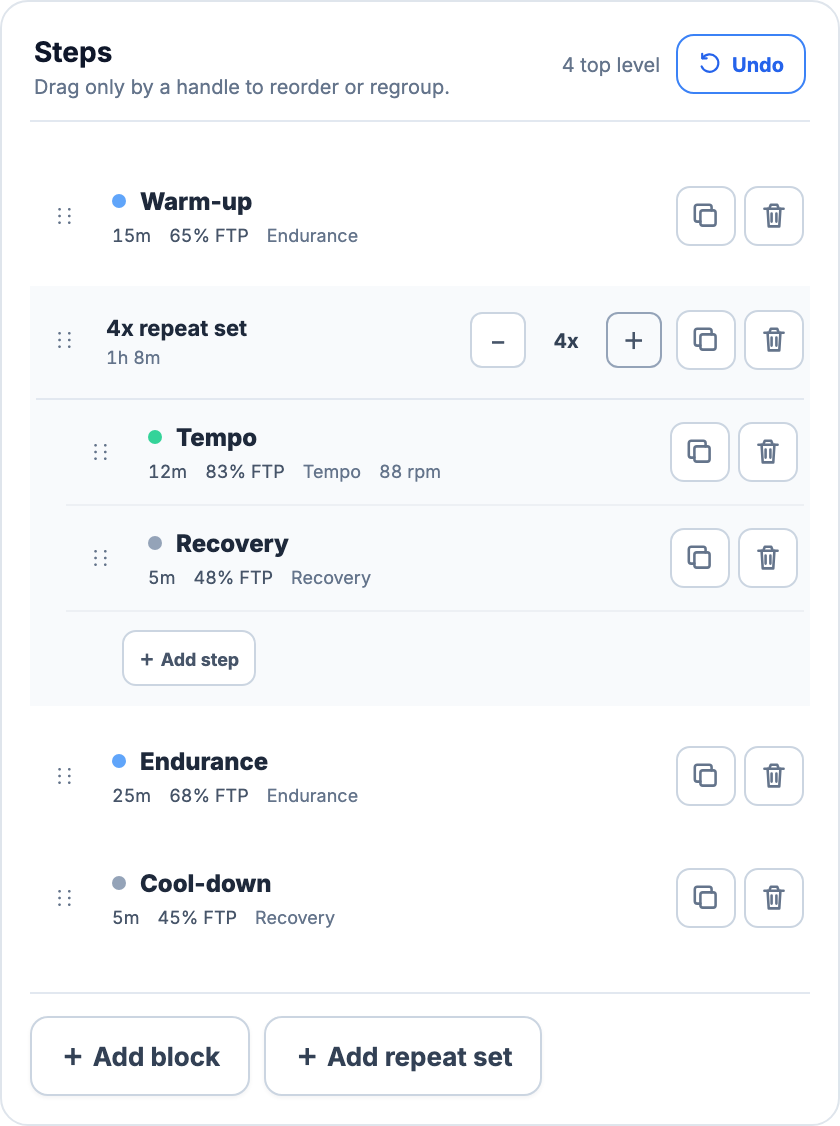
Duplicate a set when you want a separate group with different targets. Drag a child step out of a set to make it independent, or move a step into the set to repeat it. Keep repeated work grouped while it shares the same prescription; a step that needs its own adjustment belongs outside that shared pattern.
A repeat set can contain 1–20 child steps and run 1–99 times. A workout supports 80 top-level blocks, 2,000 expanded steps and 48 hours in total. These are editing limits, not recommended training durations. Some export formats have tighter limits.
Choose the target that fits the sport
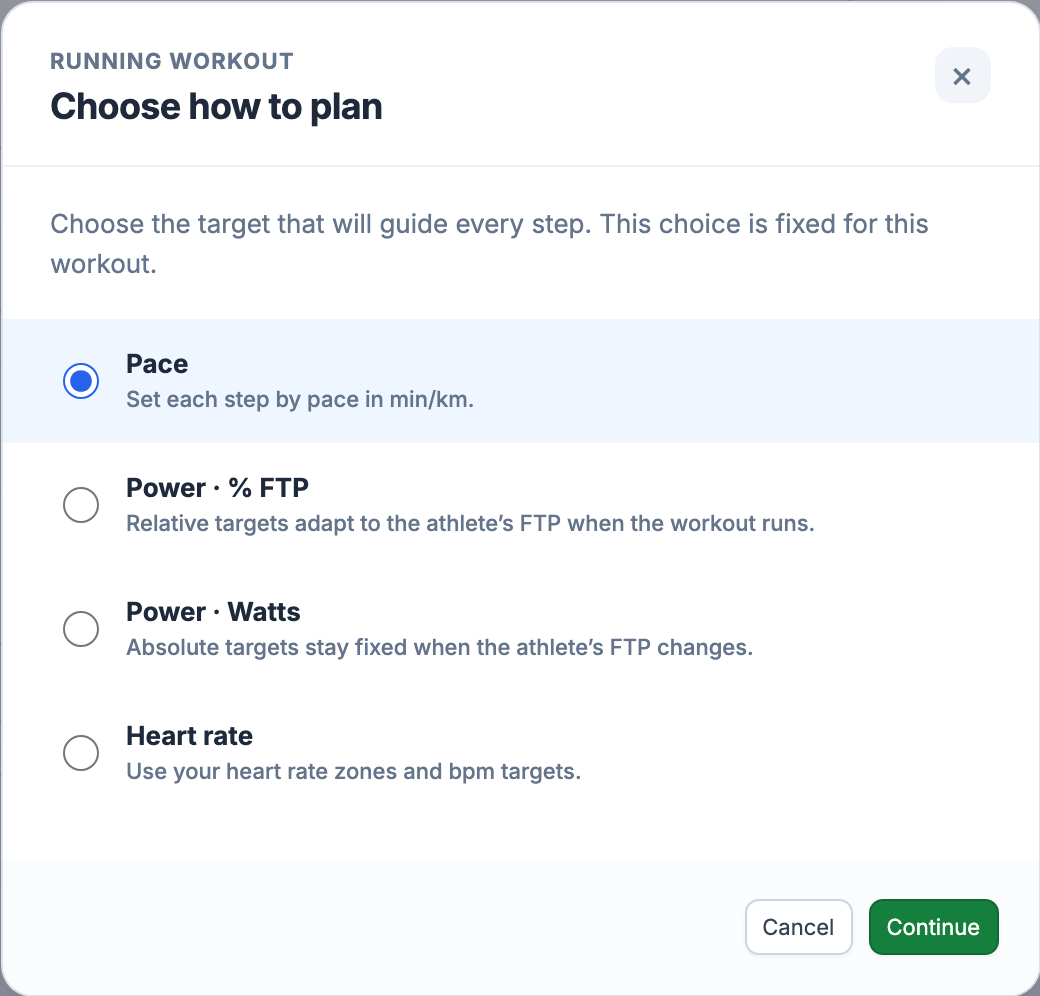
Cycling is only one starting point. The target choices depend on the sport, and the sport and target metric are fixed for that workout. The full graphical editor is available for power and heart rate. Pace and RPE use step controls rather than the same graph-dragging workflow.
| Sport | Targets you can choose | How you enter them |
|---|---|---|
| Cycling | Power or heart rate | Watts, % FTP or a power zone; bpm or an HR zone |
| Running | Pace, power or heart rate | Time per kilometre or a pace zone; power and HR as above |
| Strength and other | RPE or heart rate | Perceived effort from 1 to 10; bpm or an HR zone |
A steady step has a single target value or a zone. Power steps can also use a gradient with separate start and end values. These are targets at different times, not an acceptable lower-to-upper range; heart rate, pace and RPE keep steady targets. Accepted values are 1–2,000 W, 1–300% FTP, 30–250 bpm, 2:00–20:00 per km and RPE 1–10, as appropriate. Optional cadence targets accept 20–250 where the control is available: rpm for cycling, spm for running.
You can author a relative power workout before setting an FTP, but the app needs an applicable FTP to turn a percentage into watts. It also needs FTP to express a fixed watt target as relative intensity. Switching between Watts and % FTP converts the workout’s targets; it is more than changing a chart label. Review the conversion before confirming it.
Heart-rate zones use your HR settings, and pace-zone estimates need the relevant training-pace context. Keep these inputs current in Training Zones and Thresholds. A missing threshold cannot establish an absolute device target merely because a relative value has been entered.
See what your edits add up to
As you change the structure, the editor recalculates the duration, profile and available estimates. For the original 96-minute power example, the graphical editor shows Power Intensity (PI) 0.72, Planned PSS 83 and 983 kJ. The zone breakdown includes all repetitions: 36 minutes in tempo, 40 minutes in endurance and 20 minutes in recovery.
Duration adds the expanded steps together. PI describes the draft’s relative intensity, weighting harder blocks more heavily. Planned PSS combines that intensity with duration. Planned kJ adds the mechanical work implied by power and time; it is not an estimate of food calories. A percentage-based draft needs FTP before its targets can supply absolute watts and kJ.
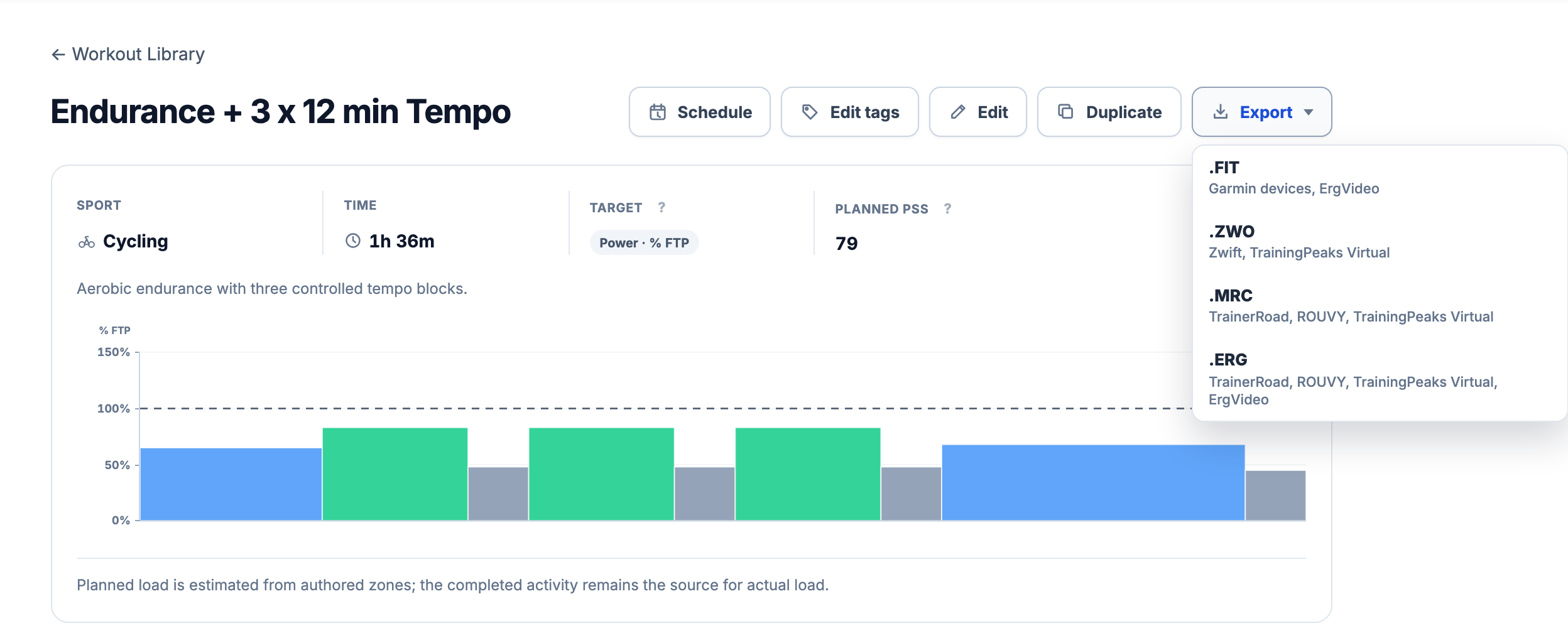
The saved plan also has a zone-based planned-load summary, calculated differently from the graphical power editor’s weighted-intensity estimate. Its PSS can therefore differ: this example shows 83 in the editor and 79 on the saved workout. Both are estimates of a prescription, not measured results.
Power and pace plans can have a planned PSS estimate. Heart-rate plans use a duration-by-zone estimate: an Edwards-style proxy, not the completed activity’s Banister TRIMP calculation. RPE steps do not provide a measured power or HR load. Planned Workout Load explains the saved-plan method; Planned vs Completed explains how to review what you actually did.
Keep the workout, then choose a day
Choose Save workout to keep the structure, name, notes, purpose and tags in the Workout Library. Open it again to edit, or choose Duplicate before changing it into a distinct variant, for example, four tempo rounds while keeping the original three-round ride.
From a saved workout, Schedule adds a dated plan to Training Calendar. If you start creating a workout for a date from Calendar, saving can also place it on that selected day. Calendar checks availability conflicts before accepting a placement. A failed placement does not require rebuilding the workout from scratch.
The dated plan is a snapshot. Editing the library workout later does not silently rewrite sessions already scheduled. Review the dated entry if you want that particular day to change.
Calendar can add that week alongside an existing plan or replace the eligible planned entries, with availability-conflict checks and protection of completed work. Applying a week fills Calendar; sending workouts to a provider is a separate action.
Export the session or send it through a connection
For the steps after a ZWO download, see the destination guides:
The saved workout keeps Schedule, Edit, Duplicate and Export together. Open Export to see the files this particular structure can produce. Our cycling power example offers FIT, ZWO, MRC and ERG.
| Route | Supported workout targets | What it does |
|---|---|---|
| Garmin Connect or Wahoo | Cycling power/HR; running pace/power/HR | Queues delivery through a connected account with the required permissions |
| FIT | Supported cycling/running power, HR and pace structures | Downloads a structured workout file for manual transfer to a compatible device or service |
| ZWO | Cycling power | Downloads a workout for compatible training software; up to 250 expanded blocks |
| MRC | Cycling power | Downloads a course with relative power targets in % FTP |
| ERG | Cycling power | Downloads a course with absolute watt targets |
In the reviewed web build, FIT export currently returns an error even though the format appears in the menu. A successful download is required before manual transfer; the menu alone does not confirm it.
Formats appear when the structure and its targets can be represented. Relative power needs a valid FTP conversion for ERG; fixed watts need one for relative-power formats such as MRC and ZWO. Strength and RPE workouts are outside these export and delivery options.
Power gradients are preserved in ZWO, MRC and ERG. For a workout with a changing gradient, FIT and Garmin/Wahoo delivery are unavailable because the current export and delivery adapters cannot retain the continuous transition. The app does not silently replace it with a steady target. A block with equal start and end values remains compatible with steady-target formats.
With a supported connection, use Send to Garmin, Send to Wahoo or Send to, depending on the accounts available. Check the delivery status on the workout. If it fails, use the reported reason to resolve the connection, permissions or target issue before retrying. Provider availability can also affect delivery.
A downloaded file has not yet reached your watch or bike computer. Likewise, provider acceptance does not confirm that a particular device has downloaded the session. Device Sync covers connections, while Import and Export covers manual transfer.
Choose how you like to build
If you prefer shaping a profile and adjusting individual steps, the power and HR editors keep those changes visible. For the differences between this workflow and text-based workout authoring, see Intervals.icu vs EffortSignal.
All Pro features are free through January 31, 2027. No credit card or automatic charges. After Early Access, keep using Free or choose Pro. See Free and Pro plans.