You remember the session: four hard intervals, a club ride or a long run before a race. The date is harder to remember. Activity Library brings your recordings into one searchable list, so you can find the session and return to the data behind it.
Start with what you remember
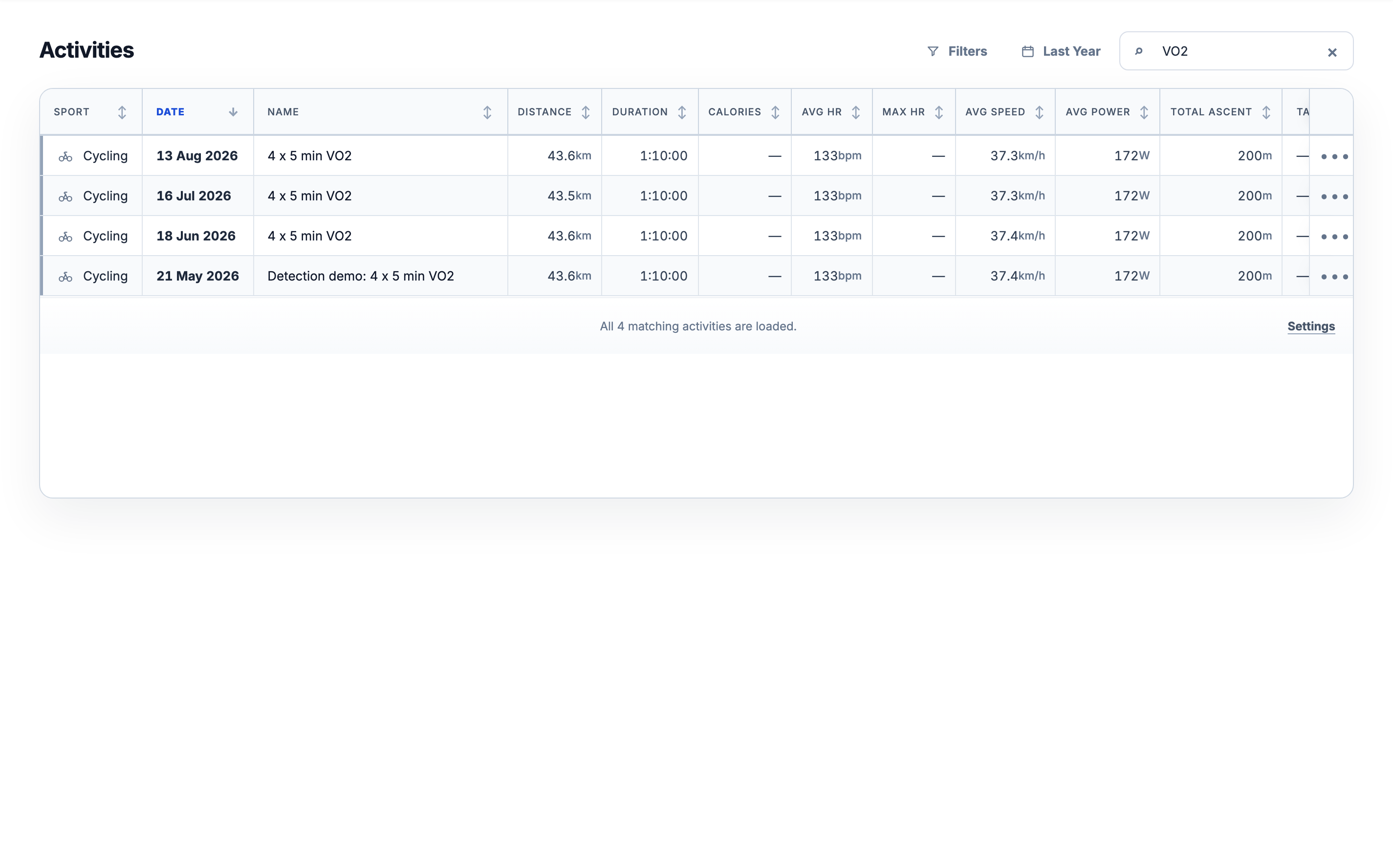
Open Activities and type part of a name, a tag or a saved club or event name. Search matches those text fields and updates as you type. Choose a period beside the search box to narrow the dates, using a preset or your own range. Clear the search with its × button when you want to keep the period and other filters.
Narrow the list to a useful group
Filters can combine sport, purpose, saved detail names and tags. Purpose describes why you trained: a road ride can be recovery, a race or a club activity. Selecting several tags matches any selected tag. Different filter groups work together: cycling plus a minimum distance of 50 km keeps rides that meet both conditions.
You can set minimum distance, average speed, average power or pool lengths, and a running or swimming pace no slower than your chosen value. Recording context separates indoor from outdoor activities and recordings with a route from those without one. Choose Apply filters to update the list. These controls select existing records; they do not calculate missing measurements.
Put the numbers you use next to each other
Open Settings beneath the list to choose visible columns and their order. Drag a handle or use the arrow buttons, then choose Save layout. The layout is saved to your account and follows you to other devices. Restore defaults returns the editor to its starting selection; save it to apply the change.
Click a column heading to sort, then click again to reverse the order. On a phone, use Sort by and its direction button. Put duration or distance first to find your longest sessions, or use power and pace when those values are available. An em dash means the value is unavailable, not zero. Columns depend on the sport, recording and available sensors.
Give your history your own labels
Use the ••• menu on a record to set tags. Select existing labels or create one with a unique name and its own colour, then choose Save tags to apply your selection. A tag can mark a training camp, a favourite route or a session you want to revisit. The tag catalog is also available in account Settings. Tags organize recordings without changing their sensor samples or load calculations.
Open the recording behind the row
Open a result for Activity Analysis: its available charts, route, laps and intervals. To put recordings side by side, start from that activity’s comparison action; Activity Comparison explains the selection and limits. Search results are a way to find candidates, not an automatic claim that the sessions are equivalent.
The row menu acts on one recording at a time. Delete opens a confirmation naming that activity. Confirming removes it from the list and direct links, while the imported file, sensor samples, intervals and analysis remain stored. This is not permanent erasure of the underlying data.
An empty list can be a filter result
If nothing matches, choose Show all activities to clear the search, filters and period together. Your recordings may simply be outside the current selection. While background processing finishes, the list keeps your search, sort, period and column choices. A loading error offers Retry; it does not mean your saved history has disappeared.
One history for your recorded sports
Activity history is included in Free and Pro in the web app, for cycling, running, swimming and other recorded sports. Bring sessions in through a supported connection or file import. A manually entered summary can keep a session in your history, but it cannot supply sensor streams that were never recorded.
All Pro features are free through January 31, 2027. No credit card or automatic charges. After Early Access, keep using Free or choose Pro. See Free and Pro plans.