A race starts well before the start line. There is a route to check, a meeting point to find and a week of training to fit around it. An Event keeps those details together on the date. As the day approaches, a weather forecast helps you prepare for the conditions.
Give the date a purpose
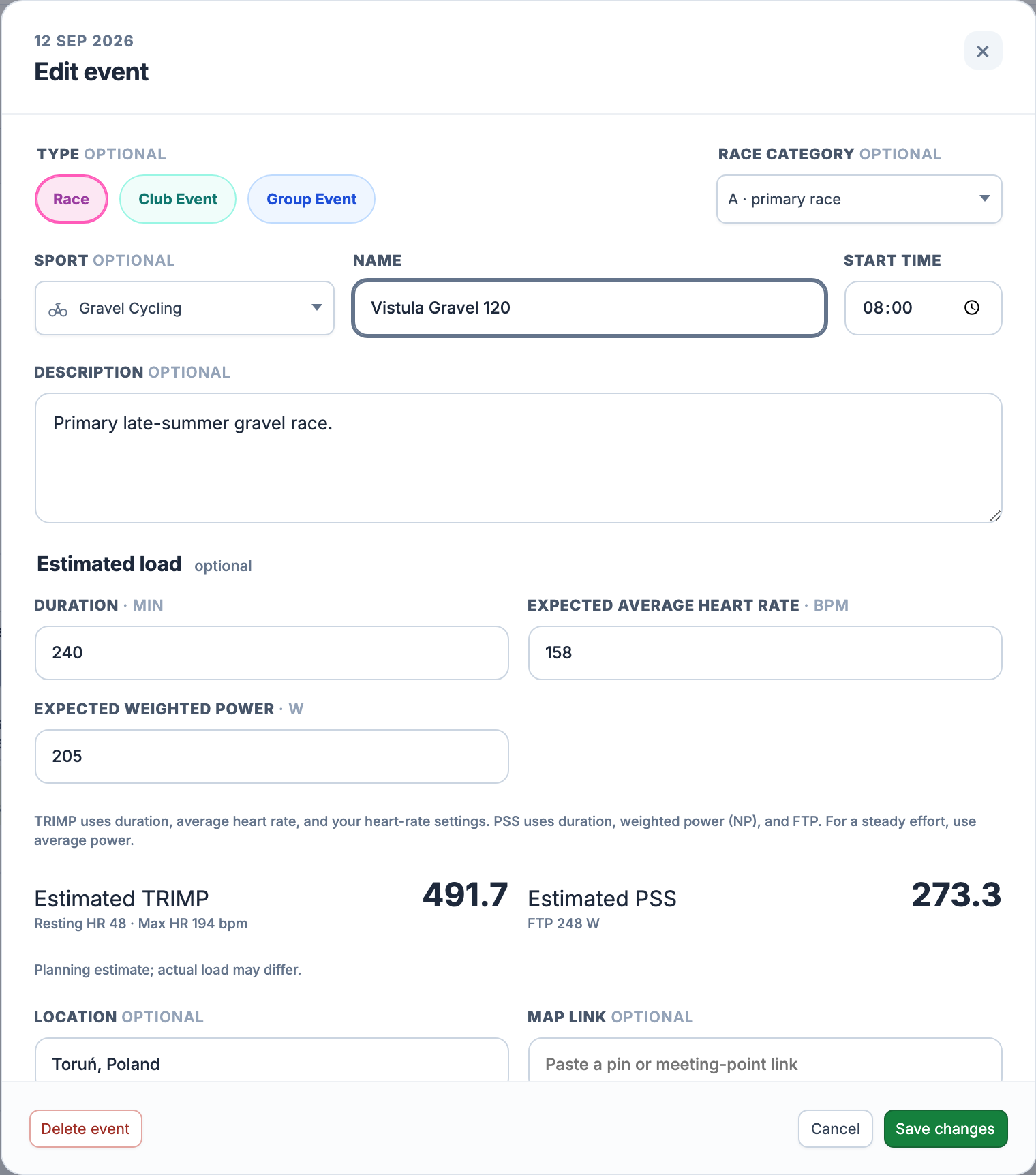
Open a day’s Add menu in Calendar and choose Event. Enter a name and start time. Type and sport are optional: choose Race, Club Event or Group Event when they describe your plans, or leave the event unclassified.
For a race, you can set A for your primary race, B for an important race or C for a preparation race. For a club event, you can add the club name and link, then reuse a saved club next time. This is your personal calendar entry; it does not create a shared team calendar or manage other athletes.
Keep the route and the meeting point together
Save the location, map link and event website beside your logistics and preparation notes. Put the arrival time, registration details or packing list here, so you can find them again without searching through messages.
Attach a GPX to keep the route private and see its distance and ascent. Its start point can fill an empty location and map link; a location or meeting link you entered yourself is preserved. The saved GPX remains available to download from the event.
Estimate the effort before the day
Estimated load is optional. Enter an expected duration in whole minutes and an average heart rate to estimate TRIMP. The calculation also needs your resting and maximum heart rate in Settings. Cycling events can estimate PSS from duration, expected weighted power (NP) and FTP. For a steady effort, average power can stand in for NP.
Missing inputs or settings leave that estimate unavailable, with an explanation. A saved estimate keeps the settings used to calculate it; an unrelated edit to the event does not silently recalculate it. These are planning numbers, not completed load in your CTL/ATL history. Structured workouts use a separate Planned Load calculation.
A forecast for the start location
For an event with a GPX route, EffortSignal requests an Open-Meteo forecast when the date is within the next 16 days. The location comes from the GPX start, not the place name or map link you typed. The forecast covers the event day at that point: minimum and maximum temperature, maximum rain probability and maximum wind speed. It is not an hourly forecast for your start time or weather along the entire route.
Weather arrives after the event is saved and refreshes in the background, no more often than every 20 hours. A date outside the forecast window or a route without a start coordinate cannot supply a forecast yet. A failed refresh can leave the last saved forecast on screen. Missing weather does not mean a dry, windless day.
When the plan becomes a recording
After the event, match the recorded activity to its calendar entry. The recording supplies the actual time, sensor data and measured load; the event alone cannot create them. Use Training Load to see how completed activities contribute to your training history.
Ready when you have a date
Events and weather are included in Free and Pro in the web app. You do not need a connected device to plan an event, and you can use any supported sport. GPX is optional for the event and required for its forecast. Load estimates depend on the inputs and settings you provide.
All Pro features are free through January 31, 2027. No credit card or automatic charges. After Early Access, keep using Free or choose Pro. See Free and Pro plans.