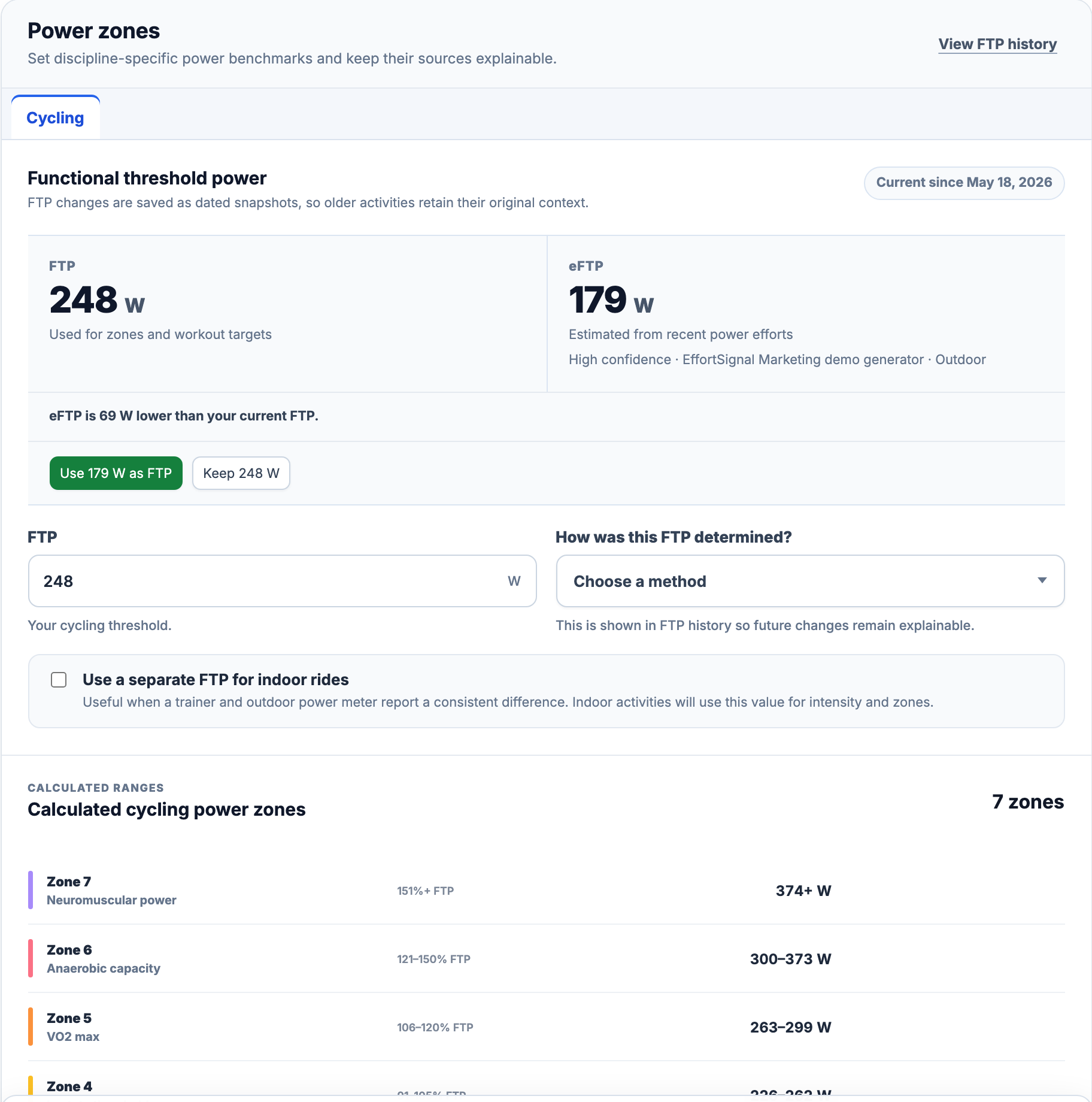
Open the user menu → Account settings → Power zones. Cycling uses functional threshold power, or FTP. Running has its own threshold power, labelled CP for the Stryd model. Choose the sport, enter the value and record how it was determined. The two disciplines keep separate settings.
For cycling, you can enable a separate indoor FTP and record its source. Activities marked indoor then use that value for relative intensity and percentage-based power zones. Outdoor rides keep the main cycling FTP; without a separate indoor value, indoor rides use it too.
Cycling offers Coggan, British Cycling and TrainerRoad presets, plus Custom. Running offers Stryd and Custom. The preview shows each zone’s name, colour and boundaries before you save. Custom power settings support two to ten zones, entered as percentages of the sport’s threshold or as fixed watts.
For example, with FTP 250 W, a zone from 56% up to 76% spans 140 W up to, but not including, 190 W. A reading of exactly 190 W belongs to the next zone. Change the FTP and percentage-based boundaries move with it. Fixed watt boundaries stay at the values you entered and can work without an FTP.
In Account settings → Heart rate zones, choose the calculation method. Maximum HR uses your maximum; HR reserve also needs resting HR. Age estimate uses the birth year in your profile. Lactate threshold uses threshold heart rate in bpm. Ventilatory thresholds uses heart rate at VT1 and VT2 to create three domains. Manual lets you enter two to seven adjoining ranges.
The method reveals the inputs it needs. Check the preview, then save; missing inputs leave the preview incomplete. An age estimate is an estimate of maximum HR, and a lactate concentration alone cannot supply threshold heart rate. TRIMP has its own inputs: resting and maximum HR and the biological-sex setting in Profile. Renaming a zone does not change those inputs.
View FTP history shows saved values and their methods over time. An eFTP estimate remains separate until you explicitly apply it. Custom watt zones can also carry a test source, test date and Effective from date. That last date says when the zones apply; leaving it blank applies them from now.
A power-setting change recalculates the affected sport and date range. Correcting an earlier setting can therefore change historical zone distributions and threshold-dependent metrics such as power intensity and power load. The recorded sensor values stay the same. Earlier and later settings keep their own dates, so check the period before saving a backdated correction.
In Activity Analysis, zone time comes from usable recorded samples and the applicable boundaries. A sensor gap supplies no zone time. A finite zone range can also leave recorded values outside every zone. Check coverage and unclassified time before interpreting the colours; the zones methodology explains the boundaries in detail.
In Workout Planner, 80% of FTP becomes 200 W when FTP is 250 W. A direct target of 200 W stays an absolute value. Zone targets use the relevant settings. Cycling supports power and heart rate; running adds pace; strength and other sessions use perceived effort or heart rate. Available exports and device delivery support a narrower set: check the delivery matrix before sending a workout.
Training zones and threshold settings are included in Free and Pro in the web app. Save the completed settings after reviewing the preview. Percentage-based zones need a valid threshold; fixed watt zones need valid boundaries. Settings organise the data you have and do not add power or heart-rate measurements that were never recorded.
All Pro features are free through January 31, 2027. No credit card or automatic charges. After Early Access, keep using Free or choose Pro. [See Free and Pro plans](/pricing/).