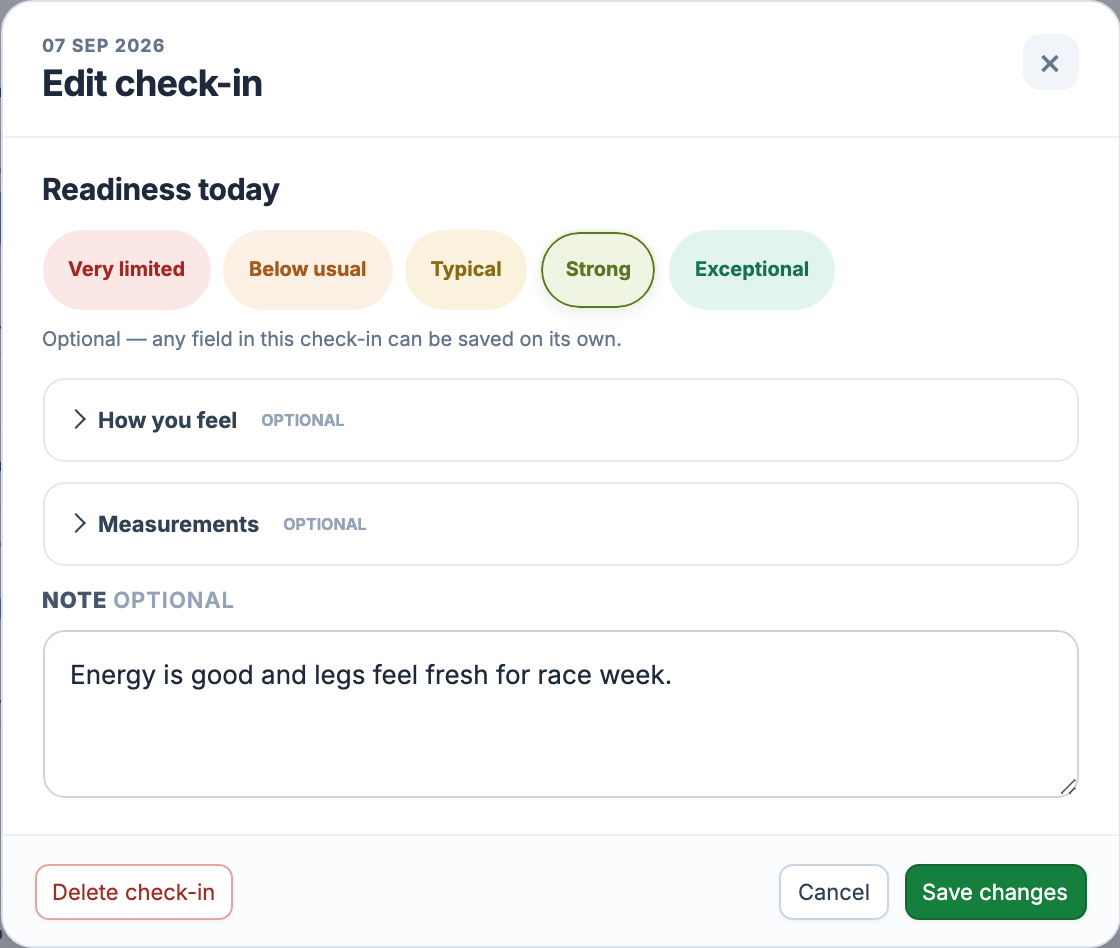
In Calendar, open a day’s Add menu and choose Self check-in. For today, you can also use Check In on the Dashboard’s Readiness card. Both open the same editor; if the day already has a check-in, you edit that entry.
Start with Readiness today: Very limited, Below usual, Typical, Strong or Exceptional. Nothing is selected for you. Every field is optional, but saving needs at least one value: a rating, a feeling, a factor, a measurement or a note. You can record sleep alone without inventing a readiness rating.
Expand How you feel to describe energy, sleep quality, body comfort, stress load and mood. Each has its own five worded choices. You can also mark possible influences, such as interrupted sleep, travel, mental load, alcohol, feeling unwell or pain. These are observations you select, not causes the app has diagnosed.
Measurements accepts resting heart rate in bpm, HRV in milliseconds, stress index BSI, weight in your selected kg or lb unit, total sleep and deep sleep. Enter sleep as h:mm: 7:30 means seven hours and thirty minutes. Deep sleep cannot exceed total sleep when both are entered. Leave an unknown value blank; it stays missing rather than becoming zero.
For HRV, choose the method your source reports: rMSSD or SDNN. A check-in stores one of them, not both, and changing the selector does not convert the number. Keep the method and the date correct so later comparisons describe the measurement you actually took.
Selecting Strong does not raise the calculated Readiness score. Feelings, factors and free text are context. Supported measurements, such as HRV, resting heart rate and sleep duration, can contribute to the calculation. Source, method and baseline requirements still apply; one manual reading does not guarantee a score.
In Calendar, a manual measurement takes priority for the field it supplies. Connected sources can fill the remaining fields; the metric tooltip identifies the source. For example, a manual resting heart rate can appear beside imported sleep. Clearing that manual field and saving lets an available provider value show through again. Manual and device measurement histories remain distinguishable.
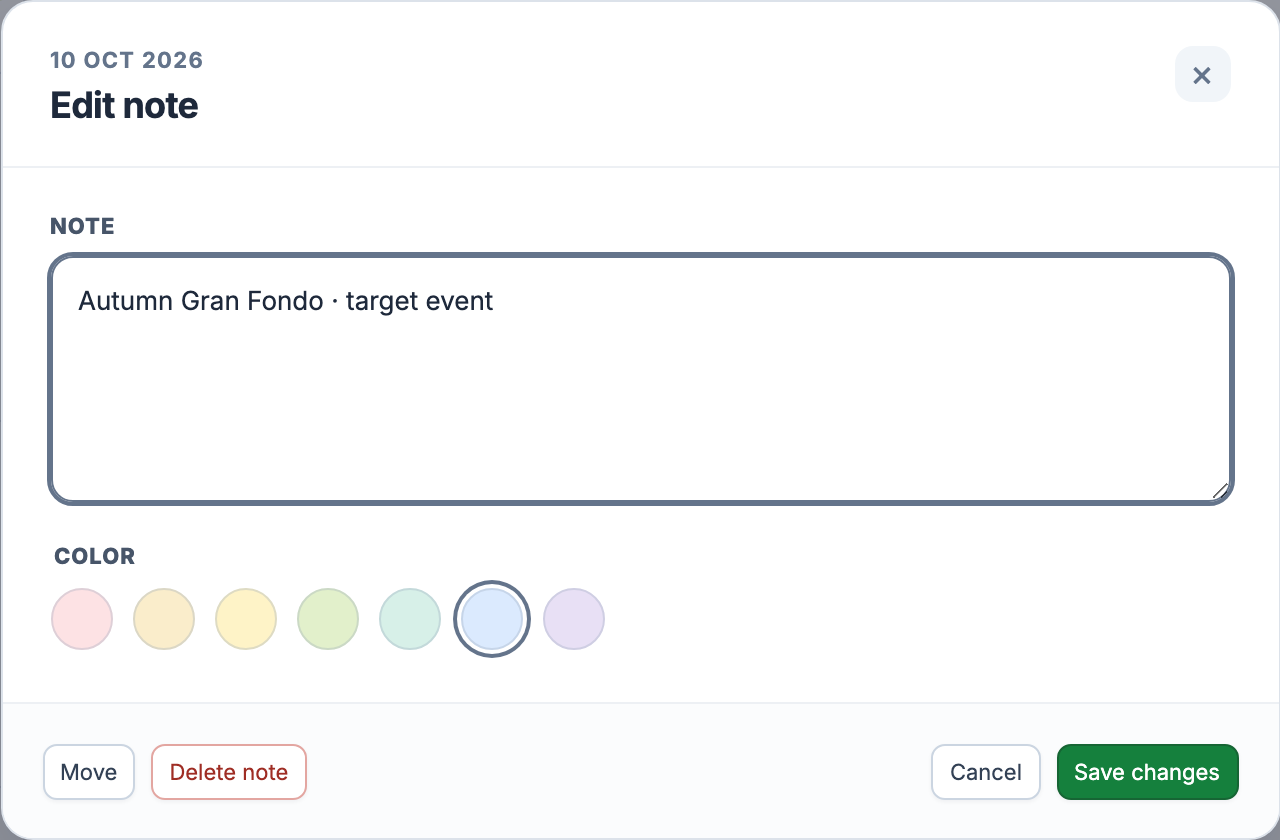
Choose Note from a day’s Add menu for a separate text entry. Write why you shortened a session, a reminder for tomorrow or a meeting point. Notes hold up to 2,000 characters and offer seven colours. The note inside a check-in stays with that check-in; a standalone note has its own calendar entry.
Open an entry to edit it and choose Save changes. Notes also have Move: pick another date, or drag the note on desktop. A check-in stays on its original date because it describes that day. To remove an entry, use its Delete action and confirm.
Cancel or Escape leaves saved data unchanged; if you edited the draft, the editor asks whether to discard those changes. A save error keeps the form open with your input. Notes and check-ins do not create workouts, sensor charts or measured training load.
Check-ins and notes are included in Free and Pro in the web app, for any sport. No device connection is needed to write how you feel or add a note. Use Availability and Blocked Days when you need an actual planning restriction; a written reminder alone does not block a workout.
All Pro features are free through January 31, 2027. No credit card or automatic charges. After Early Access, keep using Free or choose Pro. [See Free and Pro plans](/pricing/).