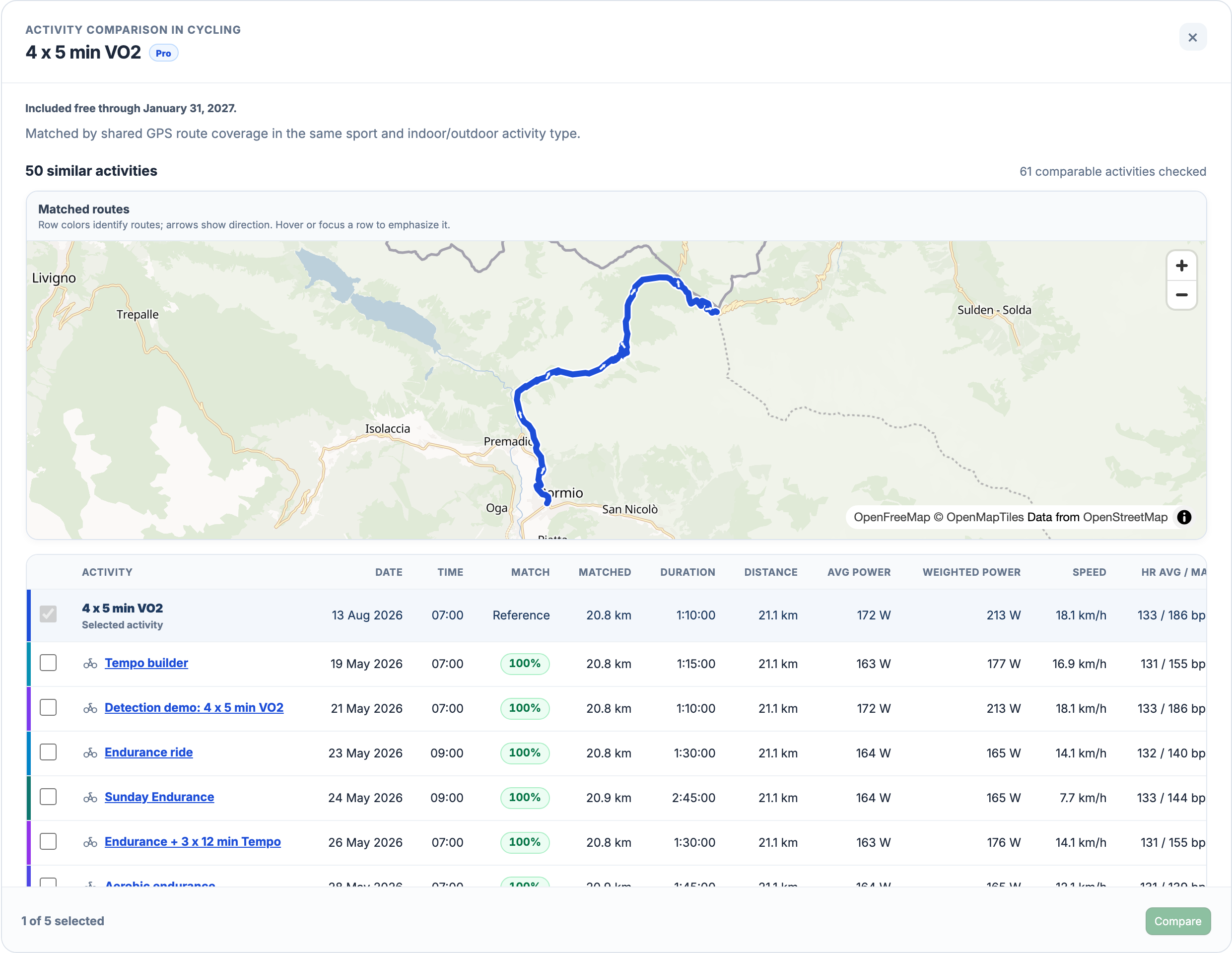
Open an activity and choose More actions → Find similar. The search stays within your own history and the same broad sport and indoor/outdoor setting. A cycling activity is compared with cycling; an indoor session is not mixed with outdoor recordings. The dialog shows search progress, then up to 50 matches ranked by similarity.
The method follows the available evidence in a fixed order: GPS route first, then power with duration, then average heart rate with duration. It chooses one method for the source activity. A route search that finds nothing does not automatically switch to power. The explanation above the results tells you which method was used.
With a usable GPS track, the score describes shared route coverage in both directions: how much of each route lies close to the other. Partial overlap can qualify; the search keeps matches from 20% shared-route similarity. It does not require the whole activities to have similar durations.
In the desktop example, Sunday Endurance has a 100% route match but takes 2:45:00; the reference takes 1:10:00. That percentage describes the route, not equal effort, weather or fitness. Row colours identify lines on the map. Hover or focus a row to highlight its route, and read the measured time, power and heart rate beside the match.
When the source has no usable route but sufficiently complete power data, the search uses power and elapsed duration. Duration must be within ±20% of the source: for a 60-minute activity, that means 48–72 minutes. It uses Weighted Power when the recording supports it, with average power as an additional check; otherwise it uses average power.
If neither GPS nor usable power is available, average heart rate and the same duration range provide the final fallback. Duration alone is not enough. A summary without stream data, or a recording without any usable matching signal, gets an explanation instead of invented matches. Similar heart rate does not establish the same workout structure or training effect.
The source activity stays selected as the reference. Tick up to four more recordings, then choose Compare. At least two activities are needed; five in total is the limit, including the source. The 50 search results are candidates, not 50 recordings in one comparison. On a phone, scroll the result table sideways to read the remaining metrics.
Activity Comparison opens the selected recordings side by side. Use it to inspect differences in time and effort, rather than treating the similarity score as a performance verdict. For a repeated climb or interval inside otherwise different sessions, use Find Similar Intervals to compare that smaller part.
The dialog distinguishes a finished search with no matches from missing source data or a failed search. An error offers Try again. If some recordings could not be read, a separate note reports how many were skipped, so the result is not mistaken for a complete scan. You can still choose recordings yourself through the regular comparison workflow.
Find Similar Activities is a Pro feature in the web app. Manual comparison of saved activities remains included in Free. Automatic search needs suitable recorded data and other comparable sessions in your history; it does not search other athletes or create missing sensor measurements. Current Early Access terms are shown below.
All Pro features are free through January 31, 2027. No credit card or automatic charges. After Early Access, keep using Free or choose Pro. [See Free and Pro plans](/pricing/).