# Planned vs Completed
Canonical HTML: https://effortsignal.com/features/planned-vs-completed/
Last content update: 2026-09-14
Calendar shows the workout you planned and the activity you recorded as separate cards. Match them to mark the plan completed, then compare the totals and see how closely you followed each effort and recovery.
Screenshots show synthetic training data in the web app. Basic comparisons are included in Free; detailed workout performance evaluation is Pro.
Match the two cards in Calendar
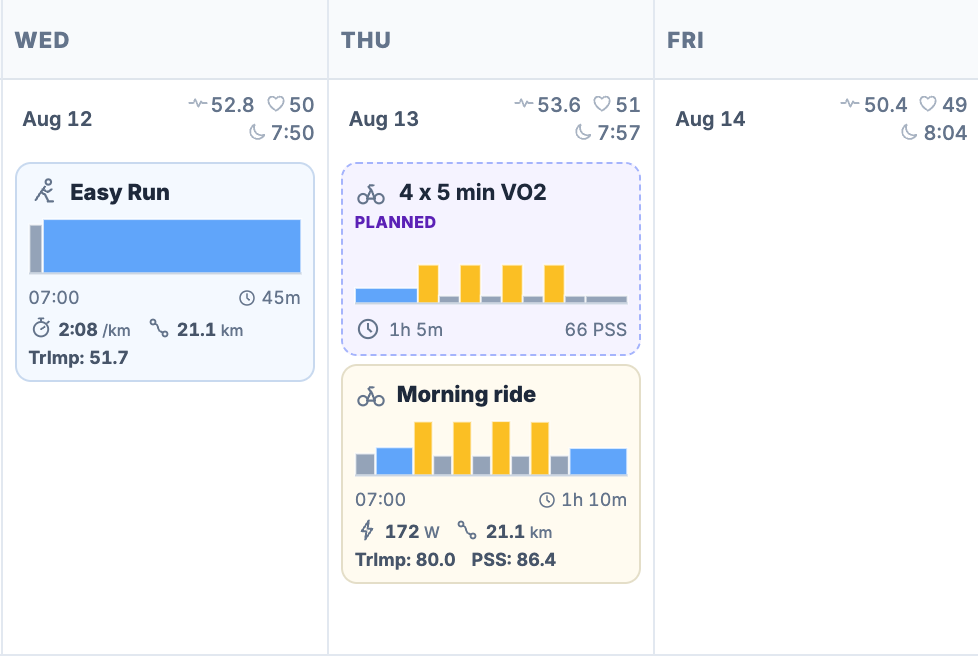
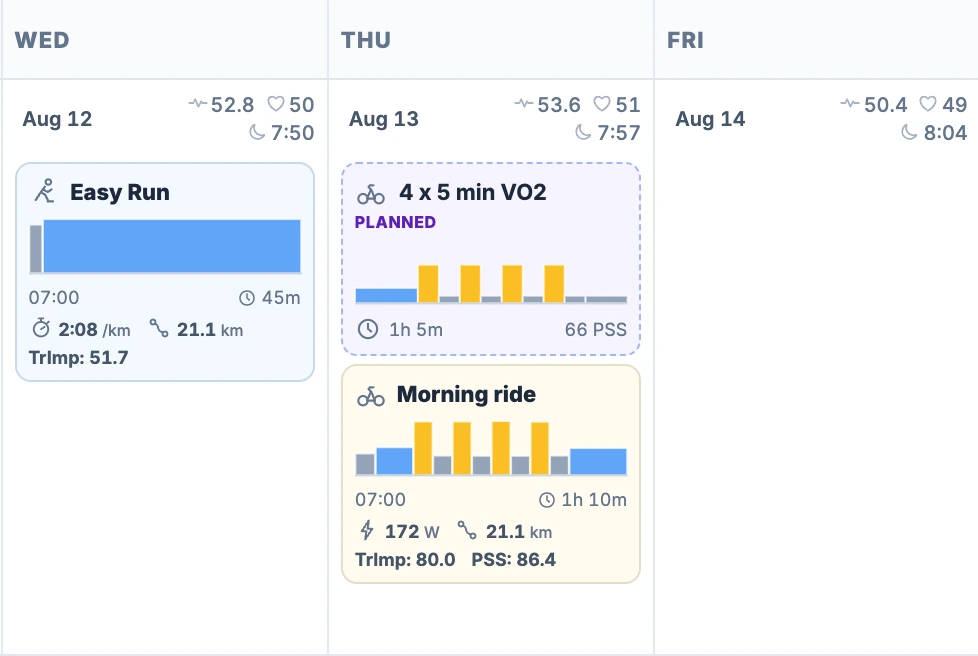
After a ride syncs or is imported, open its day in [Training Calendar](/features/training-calendar/#plan-and-actual). In this example, August 13 contains the planned workout **4 x 5 min VO2** and the recorded activity **Morning ride**. The upper card has a dashed outline and a **Planned** label: 1h 5m and 66 planned PSS. The activity below it shows the recording's start time, 1h 10m duration and measured values.
[](/marketing/product/catalog-calendar-match-pair-desktop.png)
The plan and recording occupy the same day but remain separate until you confirm a match. The dashed card is the plan; the card with a start time and recorded power is the activity.Enlarge the two Calendar cards
On desktop:
1. **Drag the planned workout onto the recorded activity.** You can also drag the activity onto the plan. Release over the other card, rather than over an empty part of the day, which is used for moving a plan.
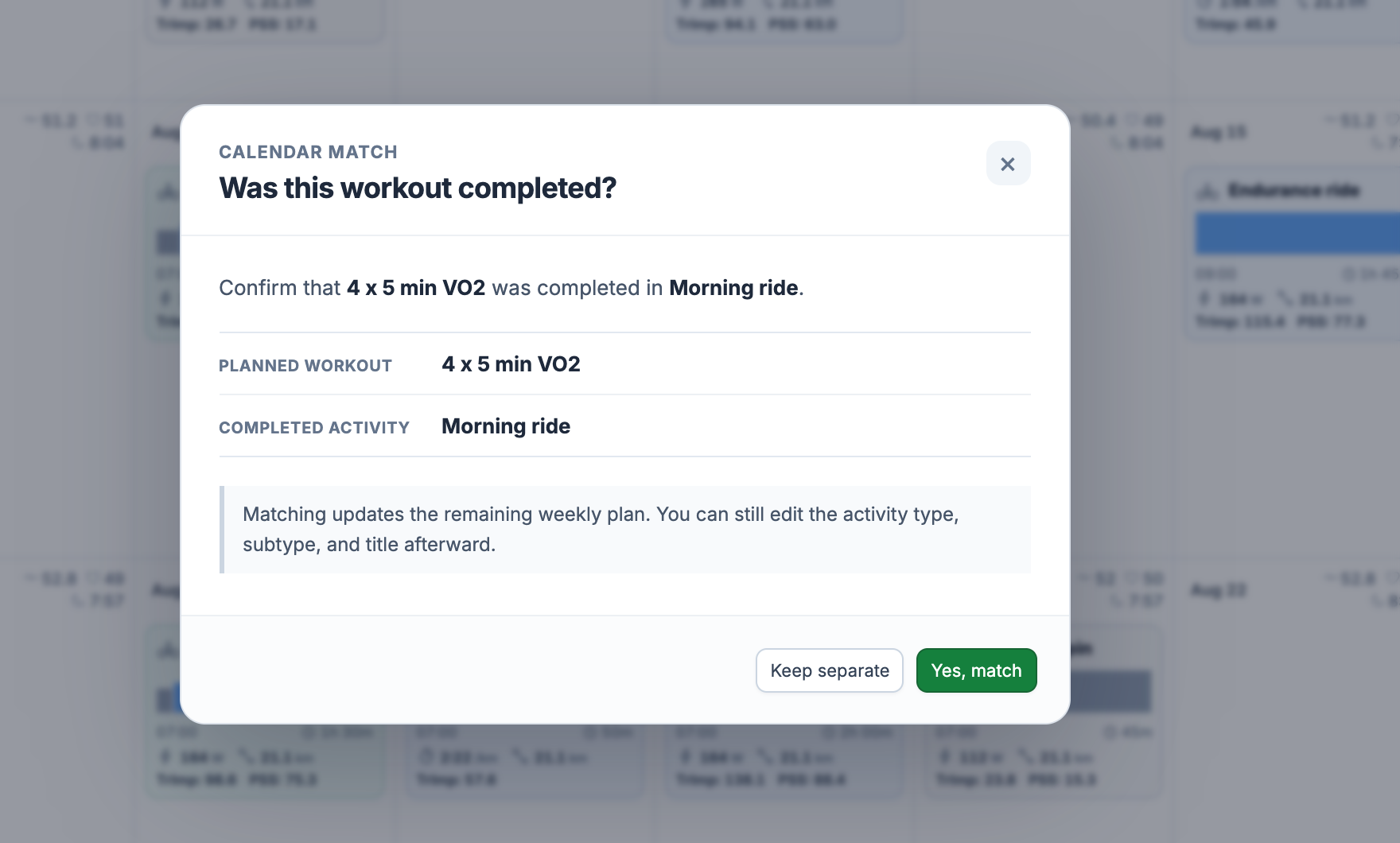
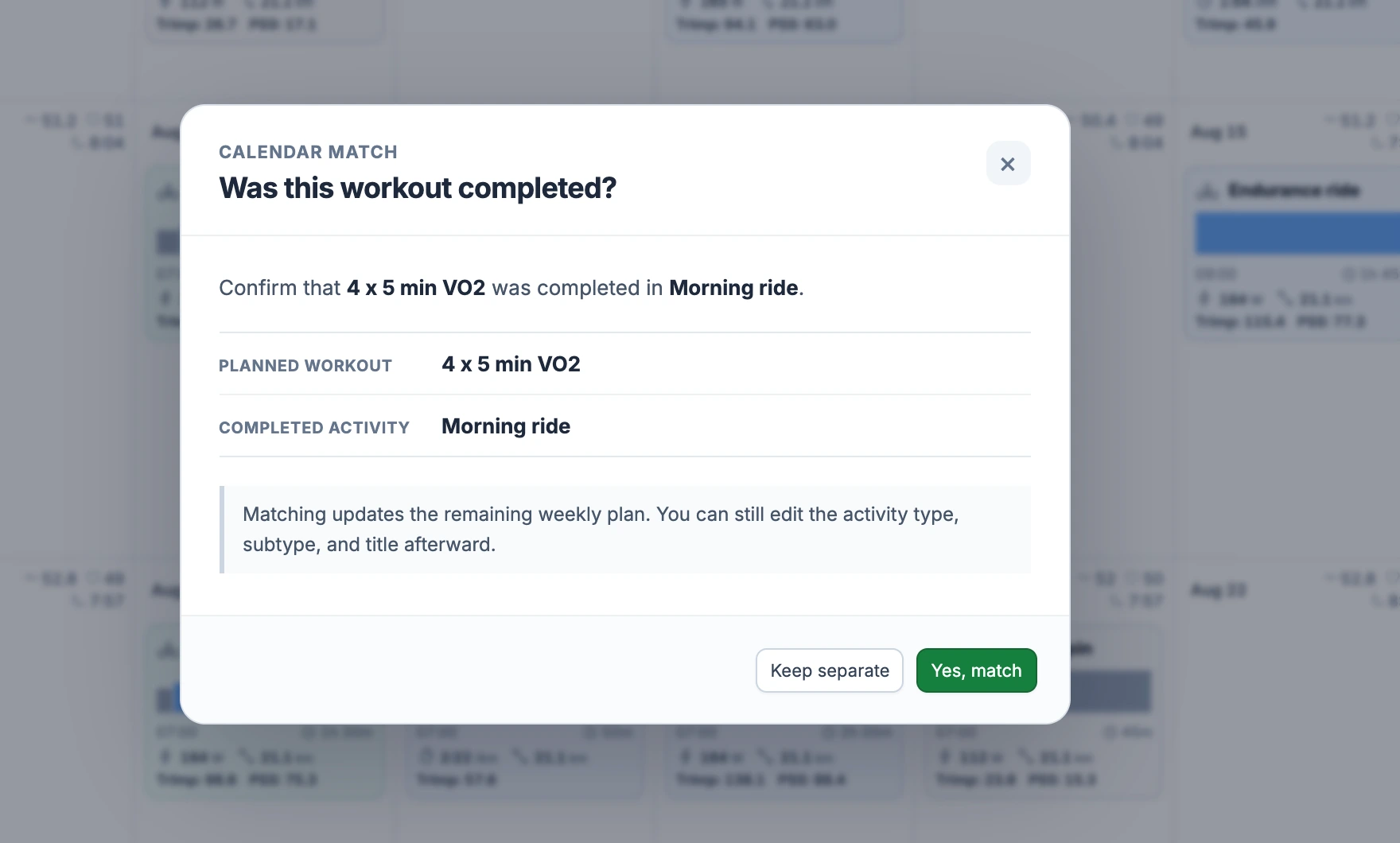
2. Calendar opens **Was this workout completed?** Check the names under **Planned workout** and **Completed activity**.
3. Choose **Yes, match**. The planned card changes to **Completed**, and the remaining weekly plan updates. **Keep separate**, the close button or Escape cancels the confirmation.
[](/marketing/product/catalog-calendar-match-confirm-desktop.png)
Dropping a card opens this confirmation. The match is saved only after Yes, match. Both records stay available, and the activity's title and type can still be edited.Enlarge the Calendar confirmation
Open the completed plan's card to see **Plan vs completed** in its preview. You may first see **Analyzing** while the comparison runs. On a phone, or if you prefer clicking, open the planned card and use **Review match** in its preview; [the suggestion flow is described below](#link).
Open the comparison from your calendar
Open the dated workout in [Training Calendar](/features/training-calendar/#plan-and-actual). Its page shows the scheduled date, target, planned duration and block profile. Once an activity is matched, **Plan vs completed** appears below the profile.
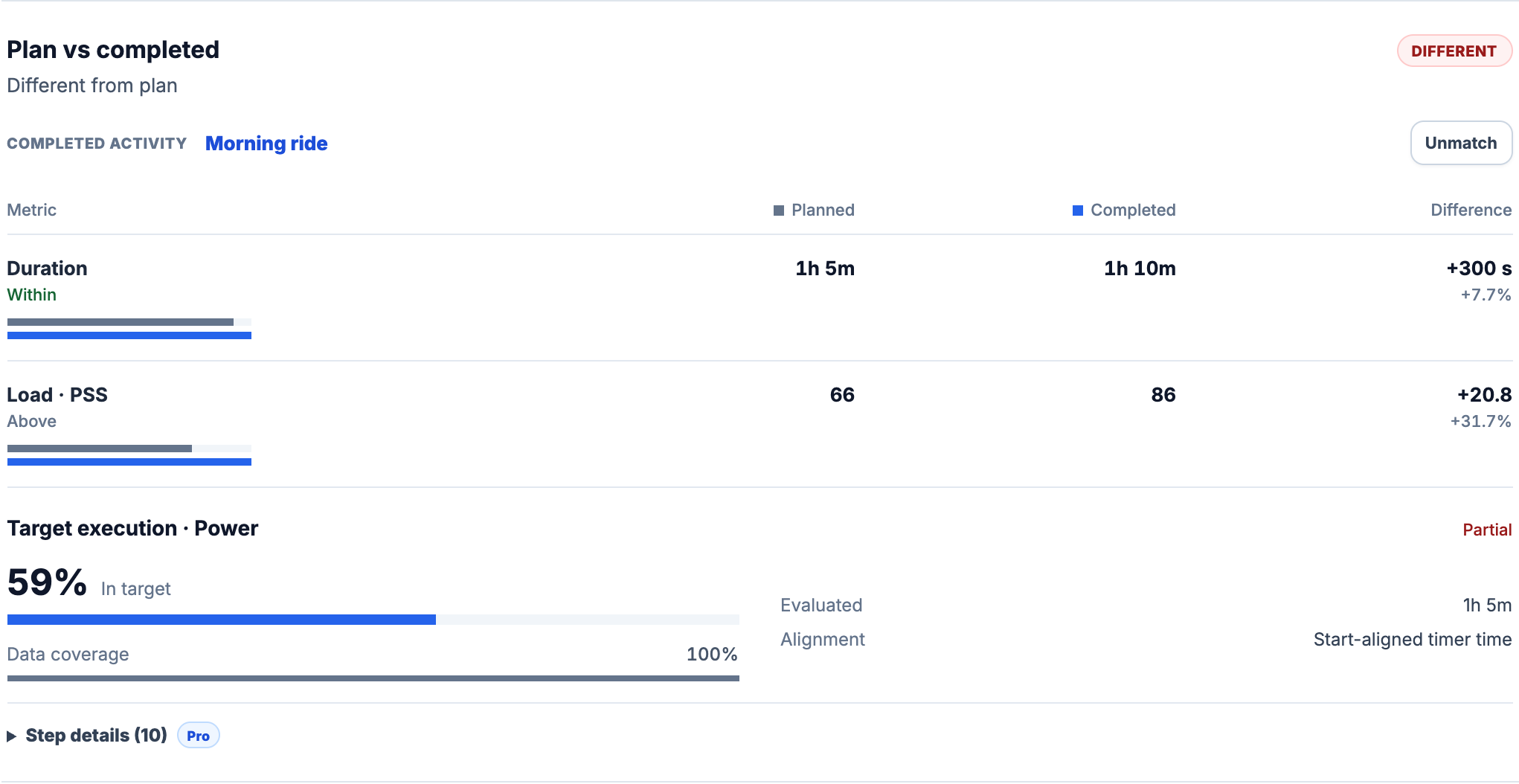
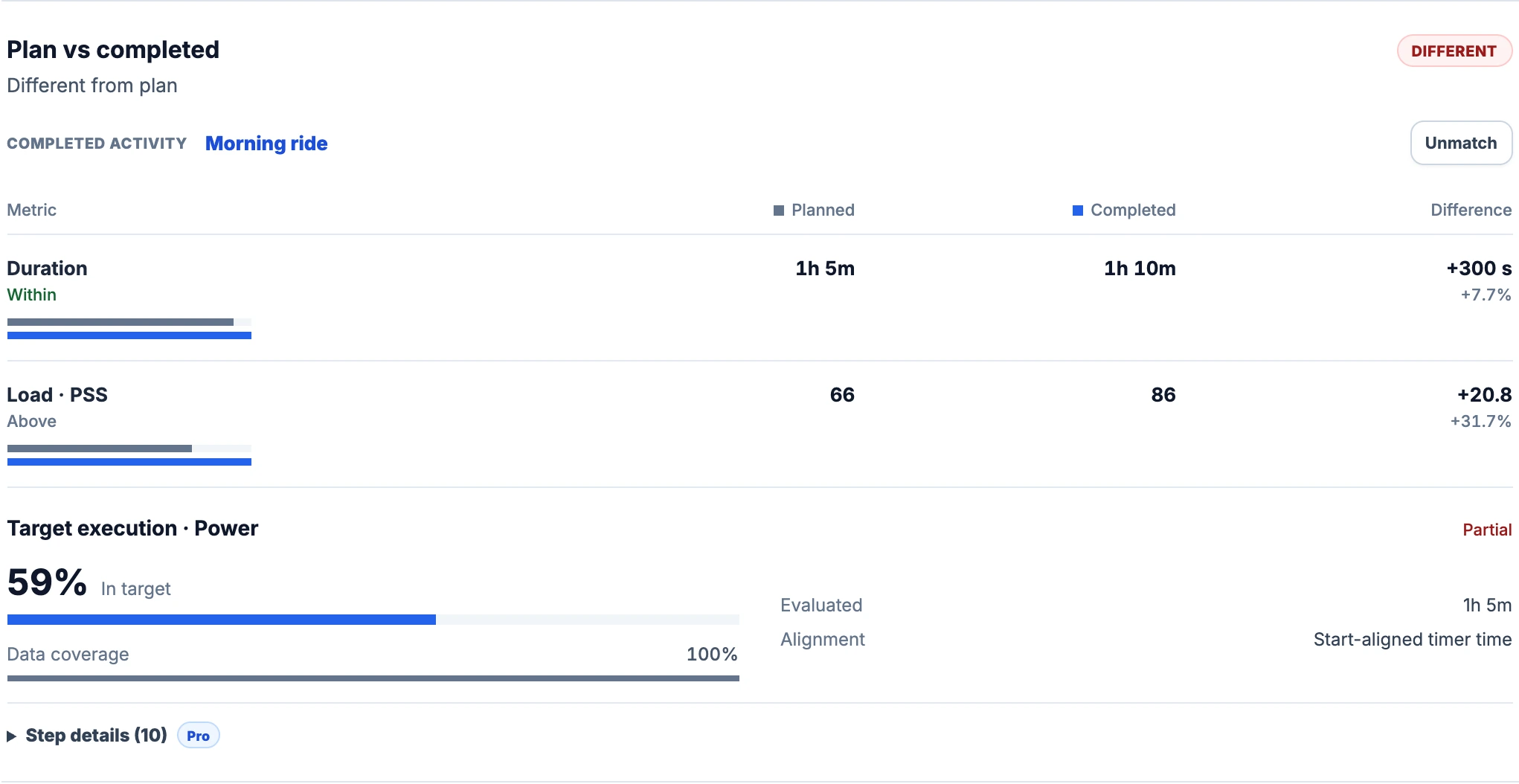
The recorded activity's name is a link at the top of the review. Below it, the table has **Planned**, **Completed** and **Difference** columns. Duration and load each have a pair of bars: gray for the plan, blue for the recording. The target section underneath shows time in target and data coverage. **Step details** expands the individual efforts and recoveries.
[](/marketing/product/catalog-plan-review-desktop.png)
The summary keeps the linked activity, totals and target execution together. Here the ride lasted five minutes longer than planned. Step details is still collapsed.Enlarge the workout comparison
This review belongs to the workout saved for that date. Scheduling creates a **snapshot**, so later edits to the [Workout Library](/features/workout-library/#organize) template do not rewrite the plan you are comparing. Opening the library template itself shows its prescription, without a completed-activity review.
Review a suggested match without dragging
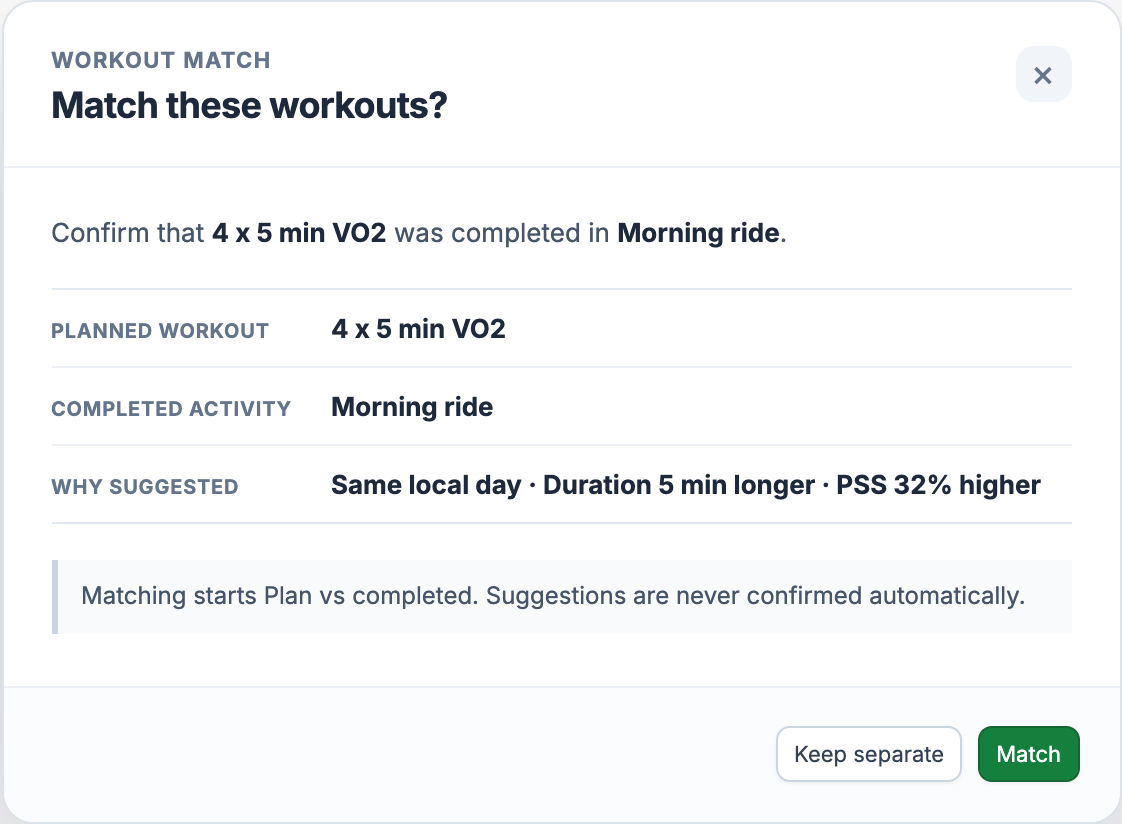
Open the planned card in Calendar to see its preview. Before a match exists, the preview and dated workout page can show suggested recordings with a **Review match** button. Each suggestion explains why it was included, such as **Same local day** and **Duration 5 min longer**. Planned and actual duration appear in the row; a load difference is included when comparable load is available.
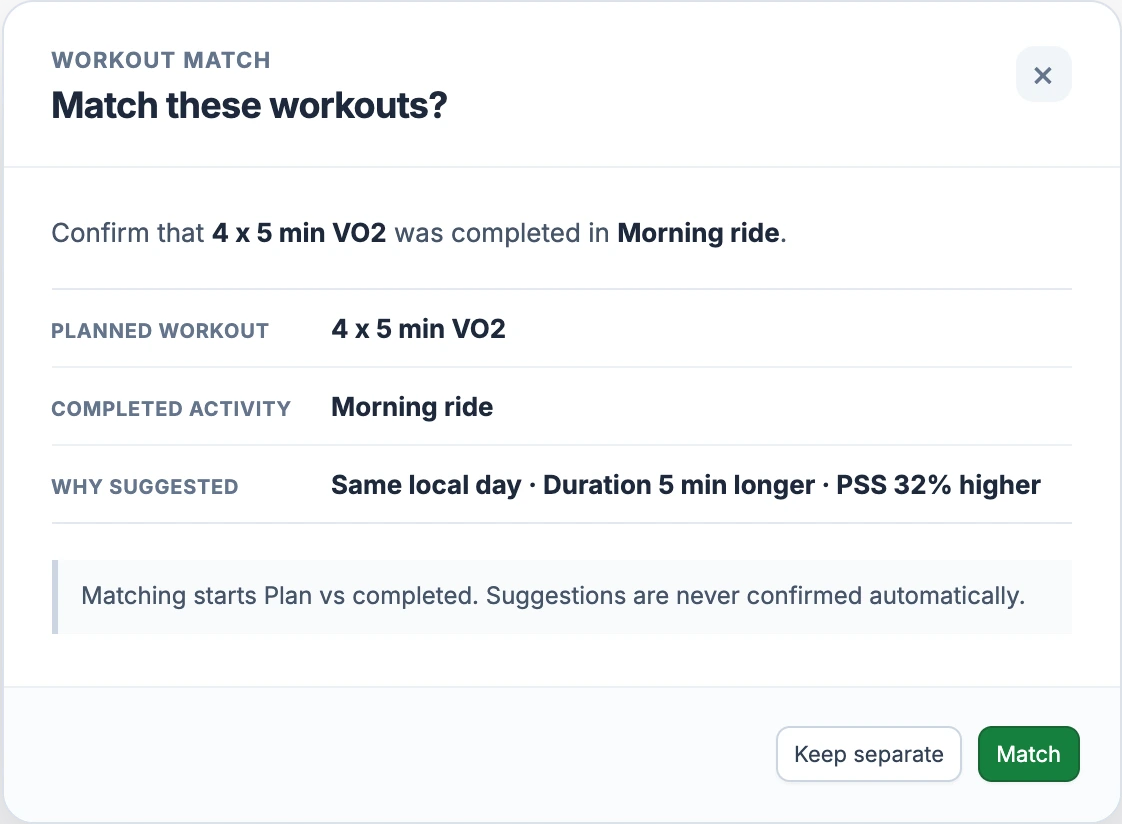
Choose Review match to open the confirmation dialog. It names the planned workout and completed activity separately and repeats the reasons for the suggestion. **Match** confirms the pair and starts the comparison. **Keep separate**, the close button or Escape leaves the suggestion unconfirmed.
[](/marketing/product/catalog-plan-match-desktop.png)
Check that Morning ride is the recording of your planned VO2 session. The reasons help you check the proposed pair before confirming.Enlarge the match confirmation
For this suggestion list, EffortSignal offers up to three candidates of the same sport. It checks the athlete's local day first and uses the adjacent days only when no eligible same-day candidate exists. Recordings must be within 50% of the planned duration. Already matched records are excluded, so an absent suggestion can mean the recording is linked elsewhere or falls outside that window.
If you chose the wrong recording, use **Unmatch** beside the linked activity name. The confirmation explains that both records stay saved; only their link and the displayed review are removed. You can then review another candidate.
Read duration and load separately
In the screenshot, Duration compares **1h 5m** planned with **1h 10m** completed. Difference shows **+300 s** and **+7.7%**. The bars share a scale within that row, so their lengths show the size of the difference.
The PSS row compares the saved planned-load estimate with the activity's calculated load. This example shows rounded totals of **66** and **86 PSS**. Differences use the underlying values, which is why the displayed change is **+20.8**, rather than the subtraction of the two rounded totals.
Each row has its own status. Here Duration is **Within** while load is **Above**. The overall **Different** label summarizes the comparison; open the steps to see where it came from. When actual load is unavailable, the row shows a dash and a reason instead of treating missing data as zero.
Planned load is still an estimate of the session you wrote. In particular, planned heart-rate load uses an Edwards-style zone estimate, while completed [TRIMP](/learn/trimp/) uses the recorded heart-rate data. [Planned Workout Load](/learn/planned-load/) explains the saved-plan calculations.
Expand the efforts and recoveries
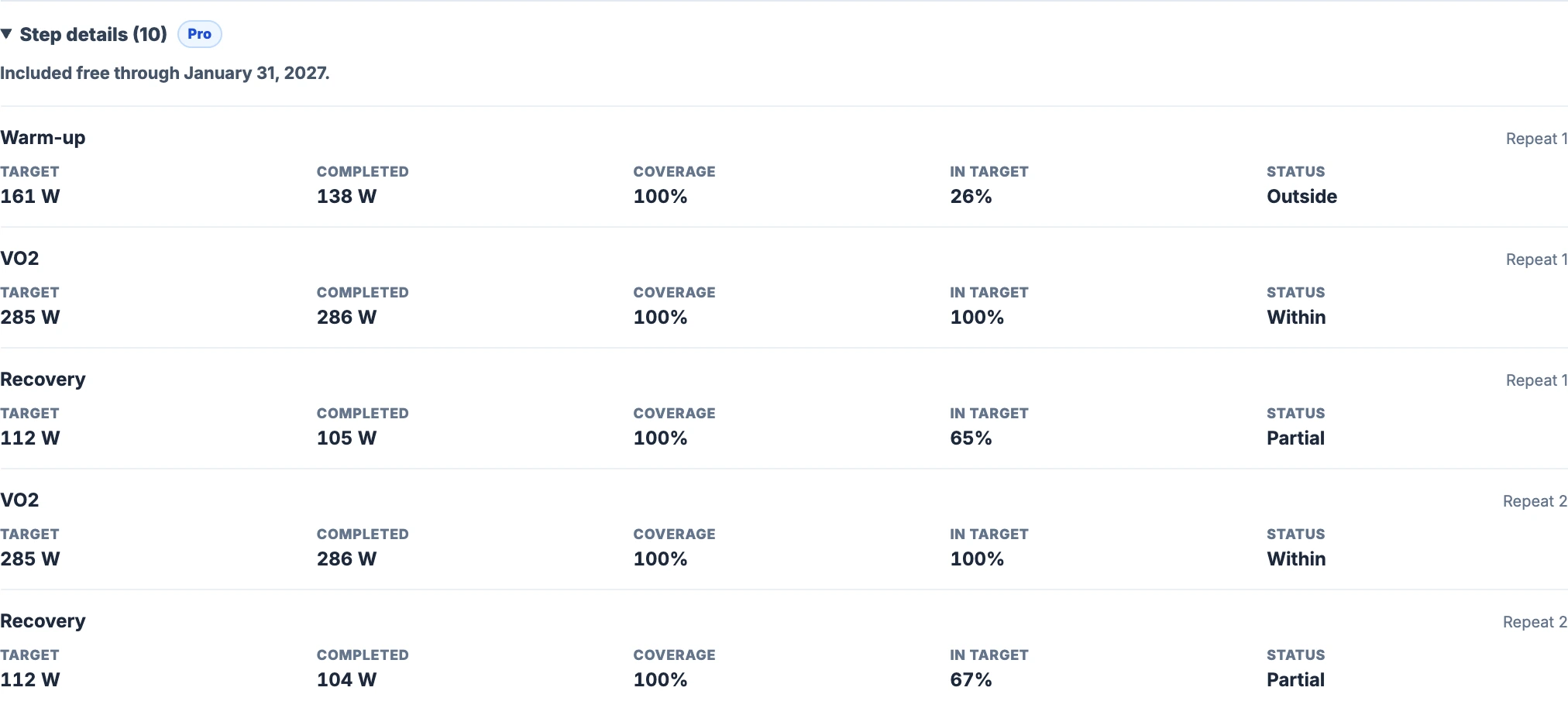
Click **Step details (10)** to open the breakdown in this example. A repeat set becomes a row for each occurrence: warm-up, four VO2 efforts with their recoveries, then cool-down. The repeat number appears beside each step name. Click the heading again to collapse the list.
On desktop, a step's values run across the row. On a phone, their labels and values stack underneath the step name. **Target** shows the prescribed value and **Completed** the average recorded value for that step. **Coverage**, **In target** and **Status** describe how much data was available and how it compared with the target.
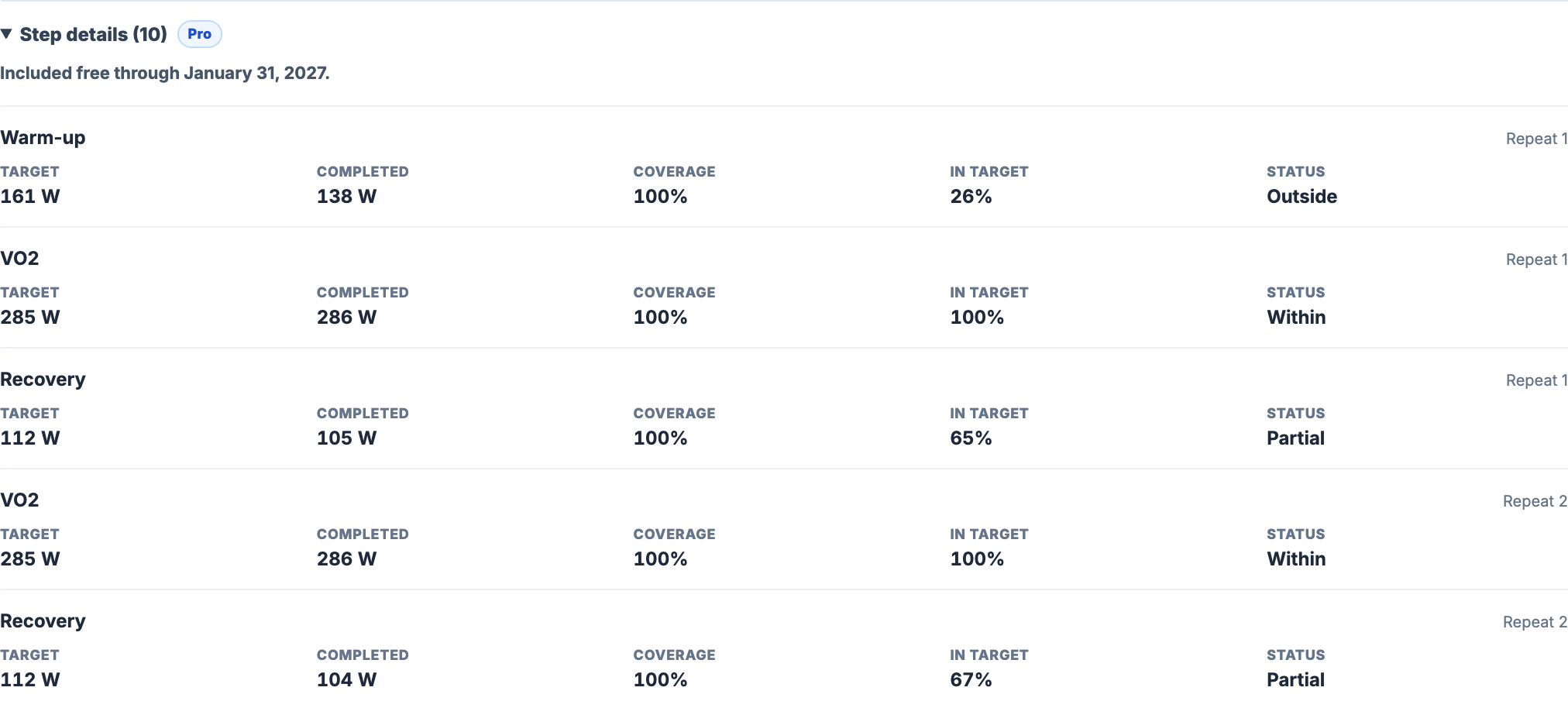
[](/marketing/product/catalog-plan-steps-desktop.png)
The start of the expanded list. The first VO2 effort averages 286 W against a 285 W target, with 100% in target. The warm-up averages 138 W against 161 W and spends 26% in target.Enlarge the expanded steps
The full review shows **98–100% in target** for all four VO2 efforts, although the overall figure is **59%**. Warm-up, recovery and cool-down also contribute to that total. The step list shows this distinction without making you infer it from the overall label.
**In target** counts time inside the allowed range among the samples with usable data. **Data coverage** measures how much of the evaluated time has usable data at all. For power, the range is the target plus or minus 5%, or 10 W, whichever is larger. A close average alone cannot establish that power stayed in range throughout the step.
Check where the comparison starts
The **Alignment** field tells you how recorded data was assigned to the planned steps. **Device laps** means the recording's lap count and durations passed the checks for correspondence with the plan. Otherwise, **Start-aligned timer time** follows the planned step durations from the beginning of the recording's timer timeline.
Our example uses start alignment. It evaluates **65 minutes**, matching the planned structure, while the duration row reports the full **70-minute** recording. If you recorded extra riding before starting the workout, check the alignment before interpreting individual step results. Start alignment does not search the ride for a later starting point.
When a step cannot be evaluated
Detailed evaluation needs a supported target and its recorded stream. Power and pace require at least **80% data coverage**; heart rate requires **90%**. Percentage-of-FTP targets also need the FTP that applies to the activity. Missing power or an unavailable historical FTP is reported as a limitation of the comparison.
Heart-rate steps shorter than 60 seconds are not evaluated. Longer HR steps skip an initial settling period of up to 30 seconds. RPE can appear as a single perceived-effort value for the workout; it is not measured per step. Open workouts have no step targets to evaluate.
While the comparison is **Analyzing**, you can leave the page open and it will refresh the result. If an analysis fails, the recorded activity remains available. A failure message describes the analysis, not whether you completed the training.
To change a future prescription after reviewing the result, open [Workout Planner](/features/workout-planner/#edit-blocks). Adjust a block's duration or intensity, save the workout and schedule the revised session for its next date.
All Pro features are free through January 31, 2027. No credit card or automatic charges. After Early Access, keep using Free or choose Pro. [See Free and Pro plans](/pricing/).