# Garmin Integration
Canonical HTML: https://effortsignal.com/features/garmin-integration/
Last content update: 2026-09-30
Record a ride on your Garmin, sync it with Garmin Connect and review it in EffortSignal. The connection can also bring in sleep and daily health data, and send your next structured workout back to Garmin Connect. You choose which incoming data types stay on.
Connect through your account settings
In the web app, open the user menu → Account settings → Integrations. Choose Garmin Connect, then Connect in its details. Review the access request on Garmin’s authorization page and return to EffortSignal. Your device continues to sync through Garmin Connect.
[](/marketing/product/catalog-garmin-connection-desktop.png)
The Garmin Connect entry before connecting a demo account. Open it to review the connection details and start authorization.Enlarge the Garmin Connect entry
New updates start after authorization for the enabled data types. Historical Garmin import is temporarily unavailable: data from before this connection cannot currently be synced through Full history sync. This limit does not stop new updates. You can import older activity files separately.
Choose what to sync from Garmin
The connected account has five controls under Automatic data sync. Each feed still depends on your Garmin permissions and the data your device records and supplies.
- Activities brings in workout summaries and metrics.
- Activity tracks adds GPS routes and recorded sensor streams. It requires Activities to be on.
- Sleep covers sessions, stages, score, quality and SpO₂ when supplied.
- HRV brings in nightly heart rate variability.
- Daily health covers resting heart rate, calories, steps, body composition and VO₂ max when supplied.
You can leave activities on while turning off health feeds you do not want to receive. Turning activities off also turns tracks off. Missing power, GPS or health measurements remain unavailable; the connection does not reconstruct data the device never recorded.
Review the recording after your device syncs
Finish the workout and sync your watch or bike computer with Garmin Connect. Once EffortSignal receives and processes the recording, it appears in your activity history and calendar. Open the activity to review the route, laps and available sensor charts.
A cycling recording with power and heart rate can support effort analysis and comparisons with previous rides. A run or swim has its own available charts. The detail depends on the recording, so two Garmin devices can supply different measurements for the same sport.
Read health data alongside your training
Sleep, nightly HRV and resting heart rate can contribute to Health Metrics & Readiness when enough usable history is available. The Garmin details show the latest available values beside the relevant feed controls, with their dates. A recent workout does not prove that last night’s sleep has arrived.
EffortSignal calculates its own training load and readiness from the data available in your account. These calculations should not be read as copies of Garmin’s training status or recovery scores. Open the relevant metric’s explanation to see its inputs and any missing history.
Send a planned workout to Garmin Connect
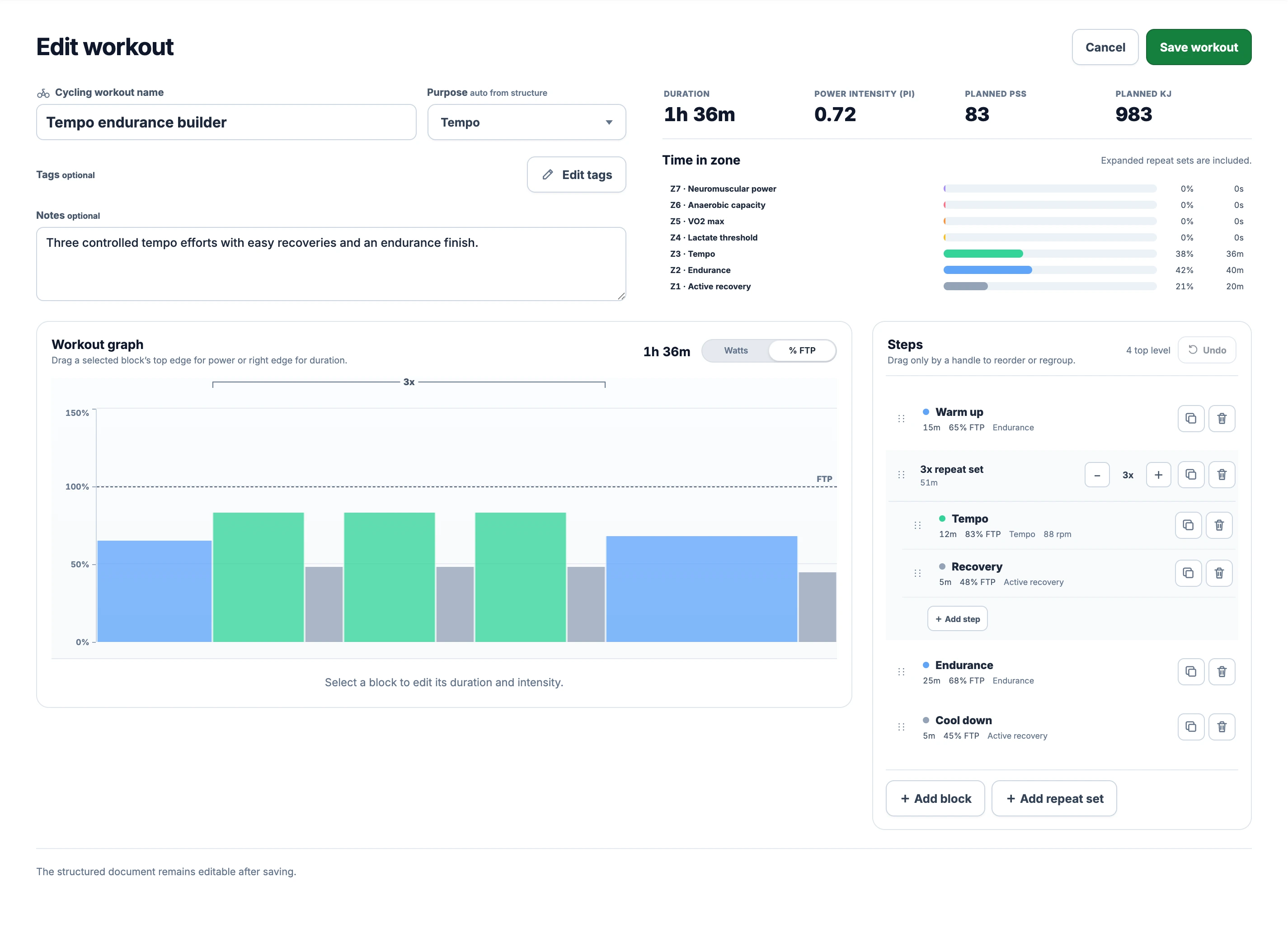
Build a session in Workout Planner and save it to your library or calendar. Open Export & Sync and choose Sync to Garmin when you want to transfer it. Saving or scheduling a workout alone does not send it.
[](/marketing/product/catalog-workout-planner-desktop.png)
A synthetic cycling session in Workout Planner. The saved steps form the workout you can send; this editor screenshot does not show a completed Garmin transfer.Enlarge the workout structure
Garmin delivery supports cycling workouts with power or heart-rate targets, and running workouts with pace, power or heart-rate targets. It requires an active connection and permission to send workouts. A reusable library workout can be sent without a date; a calendar workout carries its scheduled date.
Power gradients become short steady steps in the outgoing workout. Garmin’s 50-step limit includes repeat instructions, so a complex session may need fewer blocks or gradients before it can be sent. Relative power gradients require a current FTP. The original workout in EffortSignal keeps its authored structure.
Sent means Garmin Connect accepted the workout. Sync your compatible device with Garmin Connect and check that the session appears there before training. Acceptance by the service does not confirm that the watch or bike computer has downloaded it.
Check what has actually arrived
Open Garmin Connect in Integrations to check New workouts and Health data separately. Data received is accompanied by saved workout or health evidence. Waiting for data means the feed has not supplied that evidence yet; Paused means its controls are off. Connected describes account access, while these sections describe delivery.
If a workout is missing, first check that it has reached Garmin Connect. Then check the connection, enabled feeds and any import message in EffortSignal. Reconnect is available when access has expired or been revoked. There is no fixed delivery-time guarantee, and reconnecting does not remove the current restriction on earlier history.
Import older activities as files
The Full history sync section currently explains the Garmin restriction and links to guidance. New activity delivery and this older-history flow have separate statuses. A history restriction alone does not mean the account is disconnected.
For older recordings, use Import file with activity files you already have, such as FIT, TCX or GPX. FIT is useful when you need the recorded sensor streams as well as the route. The imported activity contains only the data in that file; uploading it does not populate a separate history of sleep or daily health measurements.
Pause a feed or disconnect
Use the individual sync controls to stop receiving a data type. To end the connection, choose Disconnect in the Garmin details and confirm. Previously imported activities and health records stay in EffortSignal; disconnecting stops the connection and clears its stored credentials.
AI analysis has a separate consent choice. Connecting Garmin does not by itself authorize AI processing. The privacy policy explains how Garmin data is stored, which derived information may be used with consent and how to withdraw it.
Availability and related guides
Supported integrations and supported workout delivery are included in Free and Pro. You need your own Garmin Connect account, the required permissions and a compatible device for the workout you want to follow. The screenshots show the web app and demo data; they do not establish compatibility with every Garmin model.
- [Device Sync](/features/device-sync/)
- [Activity Analysis](/features/activity-analysis/)
- [Health Metrics & Readiness](/features/recovery-readiness/)
- [Workout Planner](/features/workout-planner/)
- [Import and Export](/features/import-export/)
- [Garmin data privacy](/privacy/#garmin-data)
Garmin’s documentation explains when device recordings become available through Connect and how workouts reach compatible devices:
- [Garmin Activity API overview](https://developer.garmin.com/gc-developer-program/activity-api/)
- [Garmin Training API overview](https://developer.garmin.com/gc-developer-program/training-api/)
All Pro features are free through January 31, 2027. No credit card or automatic charges. After Early Access, keep using Free or choose Pro. [See Free and Pro plans](/pricing/).