# FIT File Analysis
Canonical HTML: https://effortsignal.com/features/fit-file-analysis/
Last content update: 2026-09-30
Open a recorded ride, run or swim in EffortSignal and examine what happened during the session. Upload a FIT, TCX or GPX file, then follow the available sensor data through charts, laps and a route map. The recording stays in your activity history so you can return to it later.
Which activity files can you open?
The web app accepts .fit, .tcx and .gpx files. Use an activity recording exported from your watch, bike computer or training service. The measurements available for analysis depend on what that device recorded and what the export retained.
FIT activity recordings
A FIT recording can contain session totals, laps and time-stamped sensor samples, including power, heart rate, cadence and GPS. Supported extra fields can add more detail for the recorded sport. A summary-only file can show totals, but it cannot supply a missing second-by-second trace.
FIT is also used for planned workouts and courses. Those files do not become completed activities simply because they have the same extension. Choose the recording of the session you actually performed.
TCX files with one activity
TCX import requires exactly one activity with trackpoints that have usable timestamps. EffortSignal reads laps, position, altitude and distance, plus heart rate, cadence and supported power or speed extensions when present. Export activities separately if your TCX file contains several sessions.
GPX tracks with timestamps
A GPX file must contain exactly one track with usable timestamps. A route planned on a map without recorded times does not meet that requirement. Position and elevation can describe the route; supported extensions can also carry heart rate, cadence or power. A GPS track alone does not provide those sensor measurements.
ZIP and GZ archives need to be unpacked before upload. CSV, ZWO, MRC and ERG files are not accepted by the activity import window.
Import a file into your account
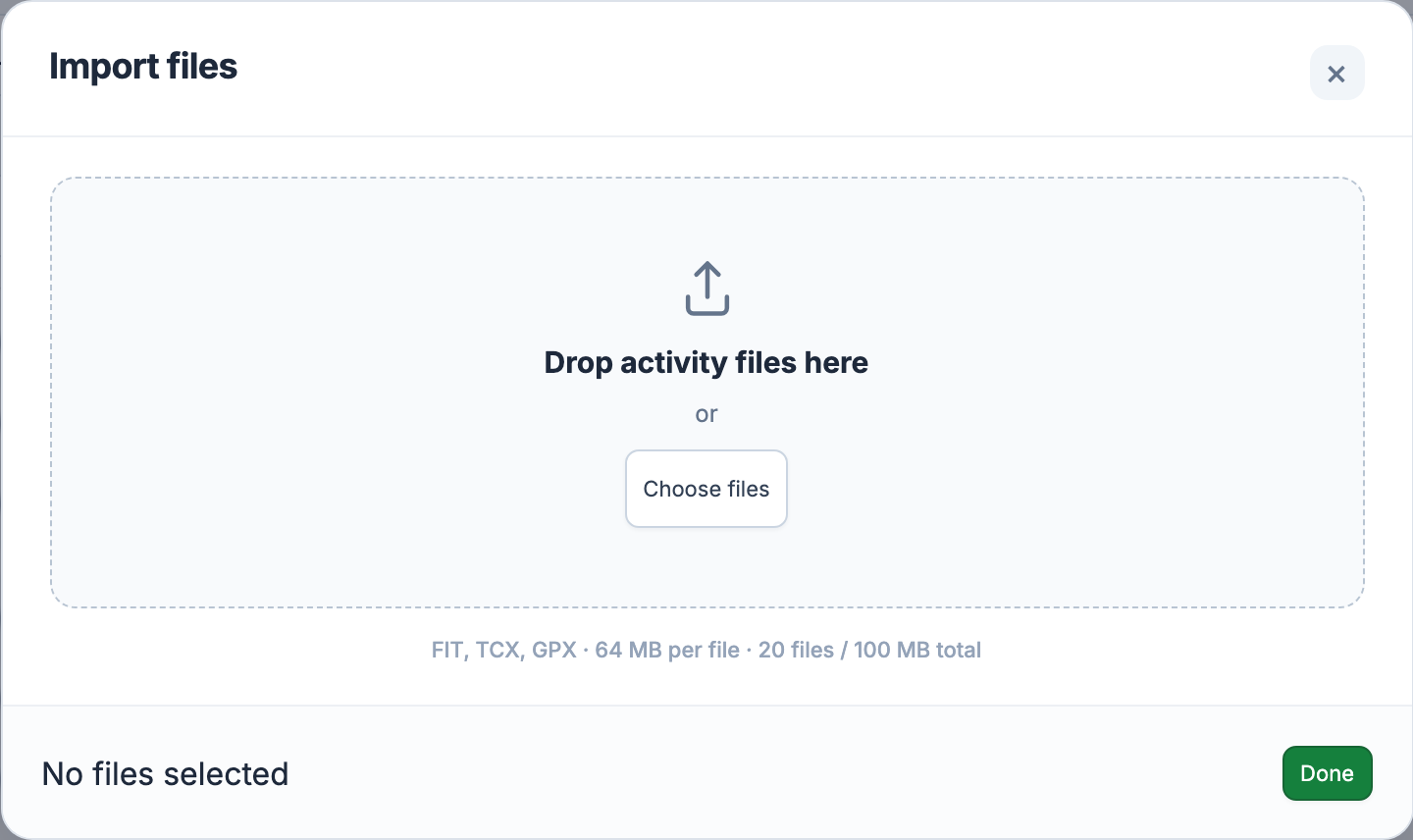
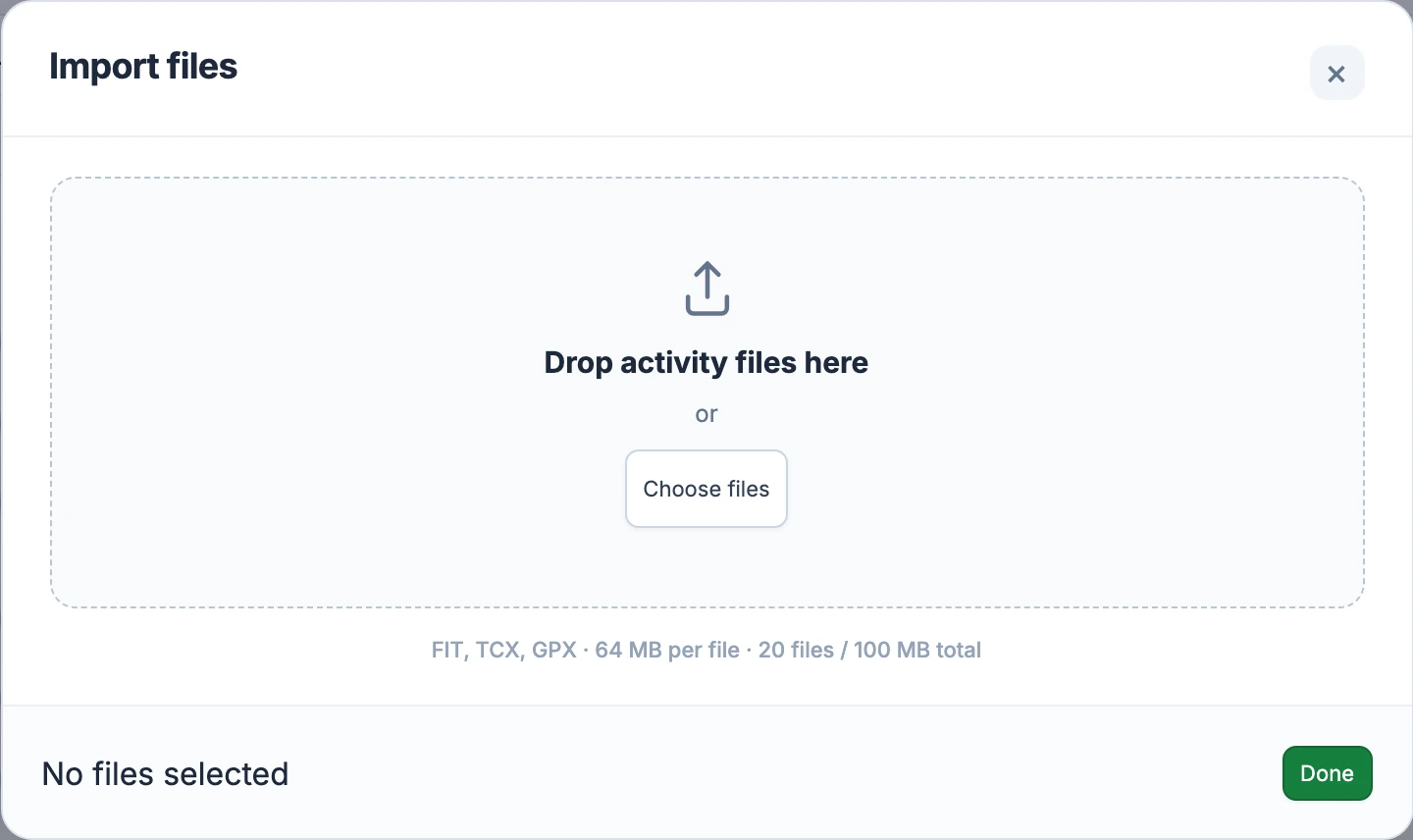
In the web app, open the user menu and choose Import file. Drop your recordings into the window or select Choose files. You can import up to 20 files at a time, with a limit of 64 MB per file and 100 MB for the whole selection.
[](/marketing/product/catalog-import-export-desktop.png)
The import window shows the accepted formats and selection limits. Choosing valid files starts the upload immediately.Open full import window screenshot
Files upload one at a time. Each row shows its result, and a failed file does not stop the remaining files. When the batch finishes, View opens an imported activity and Done closes the window. Further analysis may still be processing before every chart is available.
Read the recording on a shared timeline
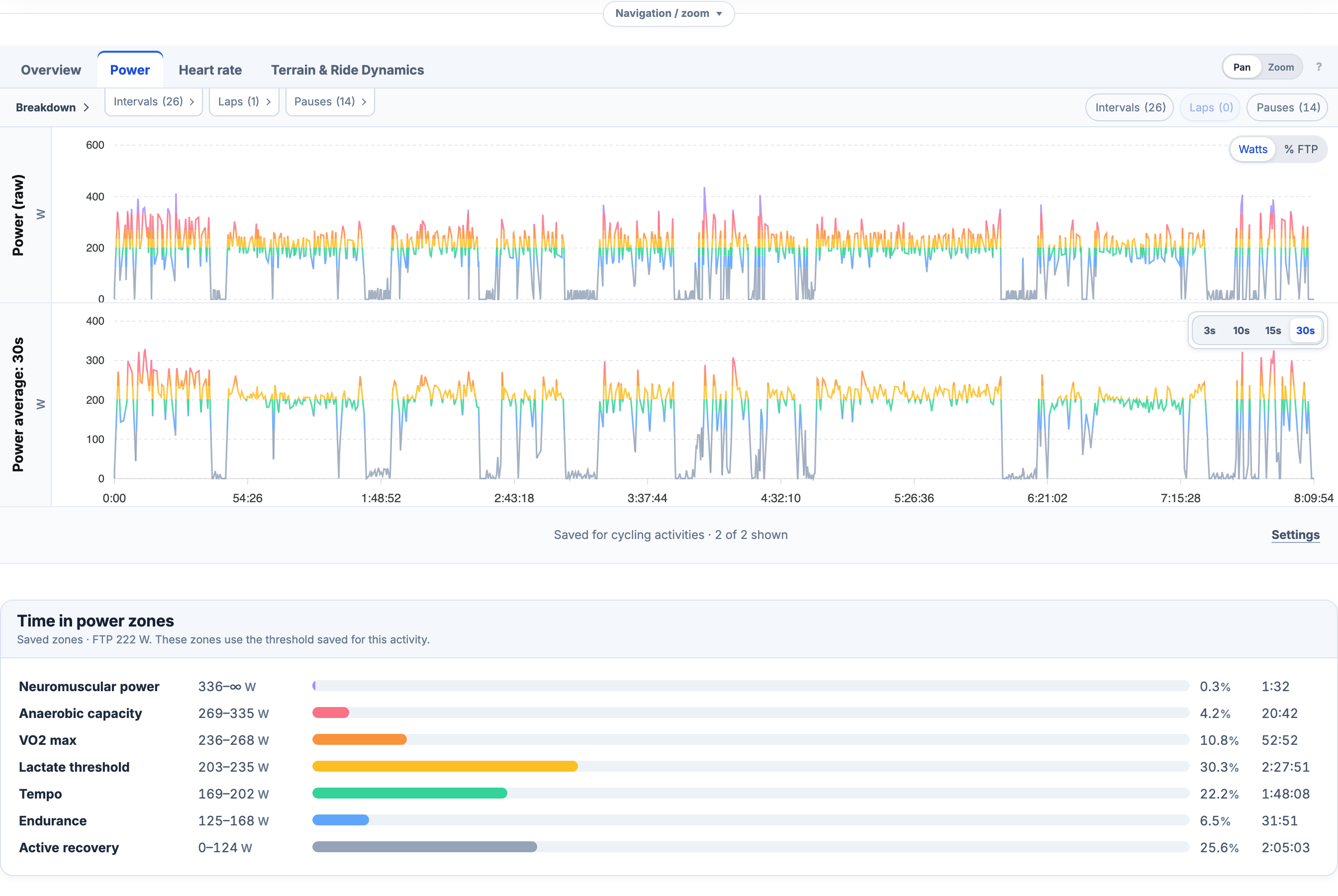
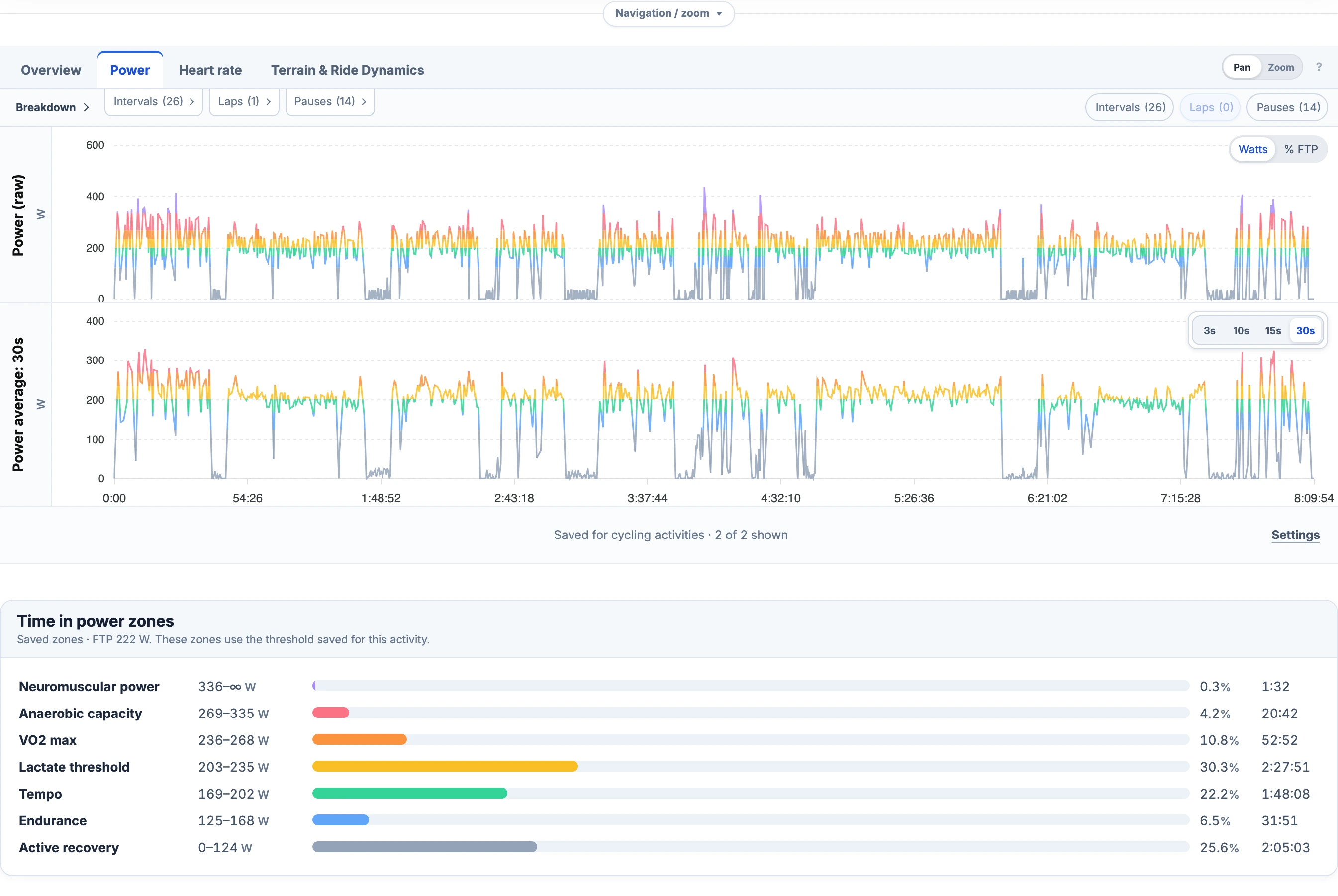
Open the activity from your history to inspect its summary and available charts. Move across the timeline to read synchronized values. Power, heart rate, speed and cadence stay aligned, so you can examine how the effort changed through a climb or interval.
[](/marketing/product/catalog-workout-power-detail-desktop.png)
This cycling recording shows raw power and a 30-second average. Other files show the charts supported by their own data.Enlarge power analysis
Use the Power and Heart rate tabs for their traces and zone distributions. Time in zones uses the zones saved for the activity. Navigation / zoom lets you inspect a shorter part of the session; Settings controls which available charts you show. With usable GPS, Track map connects the effort to its location. Indoor activities can still show their sensor charts without a route.
Inspect laps and individual efforts
Breakdown brings laps, detected intervals and pauses together. A recorded lap and an interval found during analysis can cover different parts of a session. Select the effort you want to examine, or mark your own time range for a closer look.
For a broader comparison, use saved activities from your history. Compare to → FIT file is a separate Pro option for a temporary comparison without adding that file to your activity library.
Why a chart may be missing
A file extension does not guarantee a particular sensor stream. Without recorded power there is no power trace; without usable GPS there is no route map. Cycling dynamics and swimming detail also depend on the fields present in a compatible recording.
When choosing an export from another service, check that it includes the measurements you need. Converting or renaming a file cannot restore data that was never recorded or was omitted from the export. Keep the original recording so you can compare it with another export if something is missing.
If a file does not import
Check the message beside its filename. Empty files, unsupported extensions and selections over the upload limits are rejected. A damaged FIT file can fail the integrity check; obtain a fresh copy from the source. For TCX and GPX, check the single-activity or single-track requirement and the timestamps.
Uploading the identical file again reuses its existing activity instead of adding another copy. If the activity opens while analysis is still processing, check its processing status before trying another upload.
Use file analysis on Free or Pro
Manual FIT, TCX and GPX import and activity analysis are included in Free and Pro. You need an EffortSignal account, but you can upload a recording without connecting a device provider. The same format and size limits apply to both plans.
Related guides
- [Activity Analysis](/features/activity-analysis/)
- [Interval Analysis](/features/interval-analysis/)
- [Import and Export](/features/import-export/)
- [Activity Comparison](/features/activity-comparison/)
- [Garmin Integration](/features/garmin-integration/)
All Pro features are free through January 31, 2027. No credit card or automatic charges. After Early Access, keep using Free or choose Pro. [See Free and Pro plans](/pricing/).